There are two quite different ways a Dolby Vision picture travels down an HDMI cable, and a display may accept one, the other, or both. Most of the confusion around Dolby Vision comes from treating them as the same thing.
- TV-led (also called Standard, or Sink-led) - the player sends the picture plus Dolby's scene-by-scene instructions, hidden inside the video. The display does the Dolby processing.
- Low-Latency (LLDV, also called Player-led or Source-led) - the player does the Dolby processing, using what the display says about itself, and sends a finished picture. The display just shows it.
The two signals look nothing alike on the cable. TV-led is disguised as an ordinary 8-bit RGB signal; Low-Latency is a plain 12-bit YCbCr 4:2:2, PQ, Rec.2020 signal. The source, any calibration system, and the display all have to agree on which one is in use, or nothing works.
What Dolby Vision Actually Is
Dolby Vision is PQ HDR plus dynamic metadata, inside a licensed system that runs all the way from grading to the screen.
Underneath, it uses the same PQ curve (SMPTE ST 2084) and Rec.2020 colour container as HDR10. What it adds is:
- Dynamic metadata - scene-by-scene, even frame-by-frame, information on how dark, average and bright the picture is, plus the colourist's 'trims' for displays less capable than the mastering display.
- Dolby's own processing - every Dolby Vision device uses Dolby's licensed 'display management' software to fit the picture to the display. Nobody else's tone mapping is involved.
Because it is PQ based, Dolby Vision is an absolute system - each code value means a fixed brightness in nits. A display that cannot reach that brightness has to remap the picture, and the metadata exists to steer that remapping. HLG works the other way - it is relative, scaling itself to whatever the display can do, with no metadata at all. See What is HDR? for why that difference matters so much.
The Two Kinds - Who Does the Dolby Processing?
The only real question is where Dolby's processing happens - in the display (TV-led) or in the player (Low-Latency).
Think of it as a meal. With TV-led, the player delivers the ingredients and the recipe, and the display cooks. With Low-Latency, the display first tells the player what it can eat - its brightness and colour limits, from its EDID - and the player cooks the meal to suit, delivering it ready to serve.
TV-led
TV-led is the original form of Dolby Vision, used by most Dolby Vision TVs. The display knows its own panel best, so this usually gives the most accurate result on a real Dolby Vision TV.
The price is fragility. The metadata is hidden inside the picture itself, so anything that changes even a single pixel value on the way - a scaler, a LUT box, an overlay, a processing splitter or a capture device - destroys it. When that happens the display typically shows a picture with strong pink and green casts.
Low-Latency (LLDV)
Low-Latency was created for games consoles and PCs, where the delay of display-side processing is a problem. It is now common on monitors and some projectors, and according to Semtech it is now the required mode for new Dolby Vision devices, with TV-led optional.
The player does all the work, so the display needs very little processing, and the delay is low and predictable. The picture on the cable is an ordinary-looking HDR signal, so it survives far more of the signal chain.
The Signals Side by Side
On the cable, TV-led pretends to be 8-bit RGB, while Low-Latency is an honest 12-bit YCbCr HDR signal.
| TV-led | Low-Latency (LLDV) | |
|---|---|---|
| Dolby processing done by | Display | Player / source |
| What the player needs to know about the display | Nothing | Its brightness range and primaries, read from the display's EDID |
| Picture on the cable | 12-bit YCbCr 4:2:2 in Dolby's own colour encoding, packed into an 8-bit RGB 4:4:4 'container' | 12-bit YCbCr 4:2:2 (some displays also accept 10 or 12-bit RGB / 4:4:4) |
| Transfer curve and colour | PQ, in Dolby's encoding, decoded by the display | PQ, Rec.2020, D65 white |
| Range | Full - the RGB container must pass through untouched | Limited (Legal) for YCbCr; RGB can be Full or Limited |
| Dolby metadata | Hidden in the lowest bits of the picture itself | Not sent - the player has already applied it |
| HDMI InfoFrames | Dolby Vision flag; AVI InfoFrame says RGB, full range | Dolby Vision flag with the low-latency bit set; no HDR10 InfoFrame |
| Bandwidth at 4K 60 Hz | Same as 8-bit RGB - 594 MHz, fits HDMI 2.0 | Same as 4:2:2 - 594 MHz, fits HDMI 2.0 |
| Survives processing in the chain | No - one changed pixel value breaks it | Yes, like any HDR signal |
| Delay in the display | Varies by display | Low and consistent |
| Typical users | Dolby Vision TVs, streaming boxes, disc players | Games consoles, PCs, monitors, some projectors |
Both carry roughly the same picture quality - 12 bits per sample, with half-resolution colour (4:2:2). The '8-bit RGB' that TV-led shows on HDMI analysers and in display information menus is only the wrapper.
How a Display Says Which Kind It Accepts
Every Dolby Vision display carries a small 'Dolby Vision block' in its EDID - the description of itself it sends to anything plugged into it. A player reads that block and picks the kind to send; you normally don't get to choose.
The block states:
- Which kinds it accepts - TV-led only, Low-Latency only, or both.
- Which Low-Latency formats it accepts - 12-bit YCbCr 4:2:2, and/or 10 or 12-bit RGB / 4:4:4.
- Its brightness range and colour primaries, which a Low-Latency player uses to fit the picture to the display.
As examples, these are the Dolby Vision blocks of some displays we have tested:
| Display | Accepts | Low-Latency formats | Declared brightness range |
|---|---|---|---|
| ASUS ProArt PA32DC | Low-Latency only | 12-bit YCbCr 4:2:2, or 12-bit RGB / 4:4:4 | About 0.005 to 578 nits |
| ASUS ProArt PA32UCX | TV-led (up to 4K 30 Hz) and Low-Latency | 12-bit YCbCr 4:2:2 | Peak about 1,200 nits |
| LG CX | TV-led (up to 4K 60 Hz) and Low-Latency | 12-bit YCbCr 4:2:2 | Peak about 775 nits |
| TCL 65C855X1 | TV-led (up to 4K 60 Hz) and Low-Latency | 12-bit YCbCr 4:2:2 | About 0.005 to 1,390 nits |
These are the values each display states. Actual display capabilities can vary, even between units of the same model, so the measured peak may differ from the declared one.
This is why 'supports Dolby Vision' on a specification sheet is not enough. An older player that only sends TV-led, and a monitor that only accepts Low-Latency, both 'support Dolby Vision' - but they won't work together.
Other Dolby Vision 'Versions' You Will Hear About
None of these change the signal on the HDMI cable - they describe how content is stored, or how a display behaves.
Profiles describe how Dolby Vision is stored in a file or on a disc, not how it is sent over HDMI. The common ones are:
- Profile 5 - streaming, in Dolby's own colour encoding. It plays only on Dolby Vision devices.
- Profile 7 - UHD Blu-ray. An HDR10 picture, plus an extra Dolby layer.
- Profile 8.1 - streaming. An HDR10 compatible picture, plus Dolby metadata.
- Profile 8.4 - an HLG compatible picture, plus Dolby metadata, as recorded by recent iPhones.
Content mapping versions (CM v2.9 and CM v4.0) are versions of the metadata itself. v4.0 is newer and carries more detailed trims. A display or player must understand the version used.
Metadata 'levels' are the parts of that metadata. Level 1 is the per-shot black, average and peak analysis; Levels 2 and 8 are the colourist's trims; Level 6 holds HDR10 style MaxCLL / MaxFALL values.
Dolby Vision IQ uses the display's light sensor to brighten the picture in a bright room. It deliberately departs from PQ's absolute values (see What is HDR?), so it must be switched off for calibration and measurement.
Dolby Vision 2 was announced in September 2025, adding features such as 'Light Sense', which adjusts the picture to the room using a light sensor.
Dolby Vision for gaming is simply Low-Latency Dolby Vision, generated by a games console.
What It Means for Calibration
To calibrate a display's Dolby Vision mode, the test pattern generator must send the same kind of Dolby Vision the display expects. Otherwise the display either stays out of Dolby Vision mode, or you measure a mode that isn't the one viewers will see.
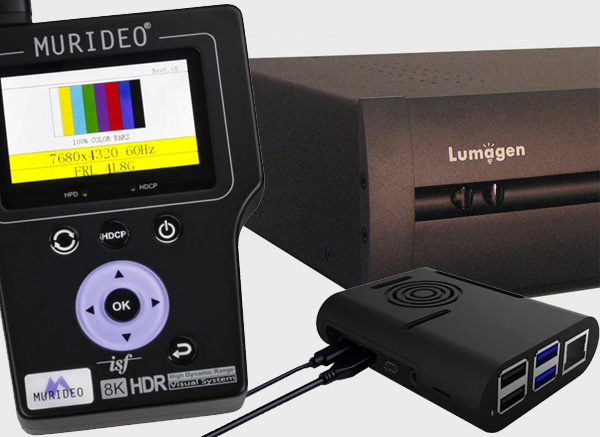
TV-led displays need a generator that builds a genuine TV-led signal - the patch in Dolby's encoding, wrapped in 8-bit RGB, with metadata embedded in every frame. The Murideo SIX-G and SEVEN-G do this with ColourSpace, as does PiTPG. The whole chain from generator to display must be bit-perfect, with no processing in between.
TV-led: Normal, Calibrate and Verify
A TV-led generator sends Dolby metadata with every patch, and one setting in that metadata - the mapping mode - decides what the display's Dolby processing does with the patch. There are three choices - normal, and two calibration modes usually named after the job each one does:
- Normal TV-led - no mapping mode. The display's Dolby processing works exactly as it does with real content, fitting the patches to the display using the mastering display information in the metadata (see below). This works on every TV-led display, and is what viewers see.
- Calibrate - 'Relative' mode. The display's Dolby processing passes the patches through without tone mapping, relative to the display's own capabilities. What you measure is the display underneath Dolby Vision, and you adjust its white balance and greyscale - normally to a 2.2 power-law gamma and D65 - using the display's own controls in its Dolby Vision picture mode. On some TVs, measurements of the primaries are then used to build a custom Dolby Vision configuration file, which is loaded into the TV.
- Verify - 'Absolute' mode. The display's Dolby processing is switched on, with the patches treated as absolute PQ values and no tone mapping. You measure the result against the Dolby Vision targets - PQ (ST 2084), P3 primaries and D65 - to confirm the PQ tracking and gamut mapping are accurate, so that real Dolby Vision content, with its dynamic metadata, is shown as intended.
Calibrate and Verify must not be mixed up. Calibrating to PQ targets in Relative mode, or to a 2.2 gamma in Absolute mode, gives a picture that is wrong with real content. Low-Latency has no equivalent, as no Dolby metadata is sent.
Calibrate and Verify only work on displays built for them. The two calibration modes have to be built into the display, and in practice they are found mainly on LG OLED TVs, which are widely used as Dolby Vision client displays, and on some other TVs - the TCL 65C855X1 we tested accepts both. Many other Dolby Vision displays do not offer them. The ASUS ProArt PA32UCX, for example, accepts TV-led and shows normal TV-led correctly, but shows a flat red screen in Verify and a flat green screen in Calibrate, with the Murideo SIX-G as with other generators. That is the display saying it does not support the mode, not a generator fault - on such displays, use normal TV-led.
What Calibrate and Verify measure in practice. On an LG CX, the two modes behave exactly as described: Verify follows absolute PQ with no tone mapping, up to a hard clip at the panel's own peak, and Calibrate gives a smooth power-law curve of about 2.2 over the whole range. PiTPG and the Murideo SIX-G measured the same in both modes - within about 1% across the grey ramp, with identical colour points. A TCL 65C855X1 behaved differently in Verify. Calibrate was as expected - a smooth curve of about 2.2 to 2.3, with the panel's own primaries adding up to white - but Verify did not hold to absolute PQ: the greys measured well above their PQ values, and the result followed the mastering display set in the metadata, clipping much higher with a 10,000 nit mastering peak than with 1,000 nits. Both generators gave the same results, so this is the TV's own processing in that mode, not the signal. Verify results should be read with that in mind - a display can accept the Verify mode and still apply some processing of its own.
TVs add processing of their own. Some TVs apply dynamic processing that reacts to the picture, which shows up as occasional single patches measuring well away from their neighbours, in different places on each run. On the TCL, a grey-only ramp measured smoothly where a run that mixed greys with colours did not. If a measurement shows isolated jumps, re-measure the patch, or use a grey-only ramp to check the greyscale.
The mastering display in the metadata. The metadata also describes the display the content was mastered on - its peak and minimum brightness, and its colour container (P3 or Rec.2020). In normal TV-led, the display's Dolby processing fits the patches from that mastering display to its own panel, just as it does with real content. A mastering peak above the display's own peak means the patches are compressed to fit, and one below it can mean they are stretched up to use the display's full range. On the ASUS PA32UCX (peak about 1,100 nits), a 10,000 nit mastering peak put mid-grey 25% below its PQ value, while a 1,000 nit mastering peak put every grey about 20% above it, up to the clip. With the mastering peak set to the peak the display declares in its Dolby Vision block (1,200 nits for the PA32UCX), there was nothing to stretch or compress, and the greys tracked PQ to within 2-5% from about 10 to 1,000 nits, with a short soft knee into the display's real peak of about 1,105 nits. So for measuring TV-led Dolby Vision, set the mastering peak to the display's declared peak.
Over-range colours change hue. A full-level PQ primary asks for far more light than any display can give - 100% red asks the red channel alone for 10,000 nits, about 2,300 nits of brightness. The display's Dolby processing keeps the brightness of the colour and gives up saturation. As the red channel is already at its limit, the extra brightness has to come from the other channels, and mostly from green, which carries most of the brightness. So instead of fading towards a paler red, an over-range red turns orange, then yellow. On the ASUS PA32UCX, with a 1,000 nit P3 mastering display in the metadata, red measured cleanly up to about code 850 of 1023 (x 0.657, y 0.339), then moved to x 0.623, y 0.368 at code 918, and to x 0.525, y 0.450 (yellow-orange) at 100%. With a 10,000 nit mastering display the whole range is compressed, so full red is dimmer and stays redder (x 0.608, y 0.381); with a Rec.2020 container it stayed red (x 0.654, y 0.338).
This is not a fault, and real content does not contain such colours - a 1,000 nit mastering display cannot produce them. For profiling, use ColourSpace's Limit Range to keep the patches within the mastering peak set in the metadata, as with Low-Latency.
Patch values: Full or Legal. In TV-led the generator does not pass the patch values to the display as they are - it converts them into Dolby's own 12-bit signal, and ColourSpace's Patch Scale also chooses whether that signal uses the full or the limited (legal) range. With PiTPG the metadata always tells the display which, and in normal TV-led every display we tested - the ASUS PA32UCX, LG CX and TCL 65C855X1 - measured the same with either. Where either works, Full has finer steps - 1,024 levels at 10-bit against 877 for Legal (256 against 220 at 8-bit). Extended range has no place in TV-led, as Dolby's signal has no room above 100%.
LG TVs in Calibrate. In the Calibrate mode, LG TVs ignore the range declared in the metadata and assume their own: limited range for models up to 2025, and full range for 2026 webOS models. On an LG CX in Calibrate, Legal gave the expected smooth curve, while Full crushed the blacks and brightened the upper greys - yet in Verify and in normal TV-led the same TV measured the same with either. So for Dolby Vision calibration on an LG TV, set Patch Scale to Legal for 2025 and older models, and to Full for 2026 webOS models. The same choice applies with the Murideo SIX-G and SEVEN-G.
In ColourSpace:
- Murideo SIX-G and SEVEN-G - set TPG Mode to DoVi, then choose the metadata in the Dolby Vision data window. DoVi Default is normal TV-led, DoVi L255 RM2 is Calibrate (Relative), and DoVi L255 RM1 is Verify (Absolute). DoVi L255 RM2 (YCbCr) currently sends the same metadata as DoVi L255 RM2. All the presets describe a 10,000 nit, P3 mastering display.
- PiTPG - the TPG Mode menu offers DV TV-led (normal), DV TV-led Calibrate and DV TV-led Verify. The mastering peak and minimum (MaxDML and MinDML) come from the Min/Max tab, where From Display fills them in with the peak and black the display declares, and the container from the HDR tab. Changes apply live.
Low-Latency displays are simpler. The generator sends ordinary PQ Rec.2020 patch values as 12-bit YCbCr 4:2:2, with the Dolby Vision low-latency flag that switches the display into its Dolby Vision mode. No Dolby metadata is involved, so what you measure is the display's own response to PQ values, exactly as with HDR10. As the signal is Legal range YCbCr, ColourSpace should be set to Legal - see TPG Operation.
For both kinds, everything between the generator and the display must pass the Dolby Vision signalling unchanged. Some HDMI switches, splitters, extenders and HDR injectors - especially older ones - pass the picture but drop the Dolby Vision information, and the display quietly falls back to its normal mode. Always check the display shows it is in Dolby Vision mode before measuring, and connect the generator directly if in doubt.
Keep Low-Latency patches inside the display's range. In Low-Latency it is the player's job to fit the picture into the brightness and colour range the display declares in its EDID. When calibrating, the test pattern generator and ColourSpace are the player, so the patches must stay inside that range too.
Use ColourSpace's Limit Range to cap the PQ patch level at the display's declared peak (see PQ HDR Calibration). For the ASUS PA32DC, which declares 578 nits, that is a 10-bit code value of 709 (8-bit Legal 168).
Patches beyond the declared range are handled differently to HDR10. In HDR10 the display clips each channel on its own, so an over-range blue stays pure blue. In Low-Latency the display's own processing keeps the brightness and gives up saturation, so the same patch measures as a brighter, washed-out blue. For example, a 100% PQ blue (16, 16, 235 at 8-bit Legal, which asks for 10,000 nits) measured as pure blue in HDR10, but as a desaturated blue at more than three times the expected brightness in Low-Latency.
Can Low-Latency Be Calibrated?
Not directly. In Low-Latency the tone mapping is done by the source - the player or games console - which fits every picture to the brightness and colour range the display declares. That source is not normally part of the calibration chain. Even if the calibration patches are played through it (for example with ColourSpace's DIP mode), what is measured includes the source's tone mapping, and correcting tone mapping through calibration is next to impossible.
The valid approach is to calibrate the display itself, using standard high-brightness HDR profiling, so the underlying display is correct, and then leave the Low-Latency source to do what it does. This works where the display uses the same calibration in its Dolby Vision mode. On the ASUS PA32DC, for example, ColourSpace uploads the 3D LUT into the User slot the monitor uses, and that same slot is used for all modes, Dolby Vision included. Where a display keeps separate settings for Dolby Vision, as many TVs do, check that the calibration carries across.
Measuring Low-Latency with a test pattern generator, with the patches kept inside the declared range as above, is still worthwhile as verification. It shows what the display does with the signal a real source will send, and whether the display reaches the range it declares. Actual display capabilities can vary, even between units of the same model. If a display's true peak is lower than the peak stated in its EDID, every Low-Latency source fits its pictures to a peak the display cannot reach, and the measured results will differ from the targets towards the top of the range.
What Low-Latency Measurements Show
In Low-Latency all of Dolby's processing is meant to happen in the source, and the display should simply show the signal it receives. Even so, a display may still process the picture itself. The ASUS PA32DC unit we tested, for example, follows PQ accurately up to about 100 nits, then rolls off gradually into its peak, rather than clipping sharply - most likely its own way of handling a measured peak below the one stated in its EDID. On a full-range EOTF graph this is easy to miss - the measured curve simply rounds off the corner where the target clips.
The roll-off appears to be applied to the brightness of the whole colour, with the colour carried along, much as Dolby's own processing works, rather than to red, green and blue separately. That keeps hues stable, but the channels no longer add up: a saturated primary is far darker than grey at the same code value, so it is compressed less, and the primaries become relatively brighter than grey towards the top of the range. In ColourSpace this shows as the channels separating in the RGB Separation graph. Rec.2020 colours outside the panel's own gamut are also mapped inwards, which changes their brightness as well as their colour.
A roll-off applied to each channel separately would avoid that coupling, but at the cost of hue shifts in bright, saturated colours. Neither approach is error-free; they make different errors. As Low-Latency carries no changing metadata, the behaviour is fixed for each colour - it can be measured, and it is part of how the display renders Dolby Vision.
Displays differ here. The ASUS PA32UCX, given exactly the same signal, behaves almost the opposite way: it follows PQ up to about 1,100 nits, then clips at its peak of about 1,175 nits, with almost no roll-off. Its red, green and blue add up to grey all the way to the clip, so the RGB Separation graph stays together; the channels only separate above the clip, where grey can go no brighter but the single colours still can. The further a display has to compress the signal, the more this coupling shows. Low-Latency measurements describe the display, not the format, so one display's results should not be taken as typical.
Dolby Vision with PiTPG:
| Display accepts | ColourSpace PiTPG TPG Mode | ColourSpace Settings |
|---|---|---|
| TV-led | DV TV-led (normal), DV TV-led Calibrate, DV TV-led Verify | RGB, Full (finest steps) or Legal range - for Calibrate on LG TVs, Legal for 2025 and older models, Full for 2026 webOS models; 8 or 10-bit; mastering peak and minimum from the Min/Max tab, container from the HDR tab; up to 4K 60 Hz where the display allows TV-led at 4K 60 Hz, otherwise up to 4K 30 Hz |
| Low-Latency | DV Low-Latency | Legal range in YCbCr 4:2:2; Full or Legal in RGB, where the display accepts RGB |
PiTPG reads the display's Dolby Vision block. If the chosen kind isn't one the display accepts, it refuses, and ColourSpace shows a message saying which kinds the display does accept. It never quietly sends something else.
Common Misunderstandings
- 'Dolby Vision is 12-bit, so it's better than 10-bit HDR10.' Both Dolby Vision signals carry 12-bit values with half-resolution colour (4:2:2). The extra bits help smooth gradients a little; they don't make the picture brighter or more colourful.
- '12-bit Low-Latency means 12-bit patches.' The 12 bits are the container the display asks for, not the precision of what is inside it. Test pattern generators usually fill it with 8 or 10-bit values, with the extra bits set to zero - the Murideo SIX-G, for example, accepts 8-bit values from ColourSpace. For calibration that is not a real limitation, as 10-bit PQ steps are already finer than most meters can reliably resolve.
- 'My analyser says 8-bit RGB, so Dolby Vision isn't working.' For TV-led, 8-bit RGB is correct - it is the wrapper the 12-bit Dolby picture travels in.
- 'A pink and green picture means a faulty cable.' Usually it means a TV-led signal reached something that didn't decode it - for example a display that only accepts Low-Latency, which simply shows the 8-bit RGB wrapper as a normal picture - or something in the chain altered the pixel values.
- 'The Low-Latency trick on an HDR10 projector gives Dolby Vision.' Devices that fake a Low-Latency EDID make the player do the Dolby processing, but the projector itself only receives a PQ signal, which it treats like HDR10.
- 'Colours measure correctly in HDR10, but wrong in Low-Latency.' Check the patches are inside the display's declared peak brightness. Over-range patches are clipped per channel in HDR10, but desaturated by the display's own processing in Low-Latency - see What It Means for Calibration, above.
- '100% red measures orange in Dolby Vision, so something is wrong.' Not necessarily. Full-level PQ primaries ask for far more light than the display can give, and Dolby's processing keeps the brightness by adding the other channels, mostly green, so an over-range red turns orange or yellow. Keep the patches within the mastering peak in the metadata, or the display's declared peak in Low-Latency.
- 'The patches look right, so Dolby Vision must be working.' Not necessarily - if something in the HDMI chain has dropped the Dolby Vision signalling, the display shows the patches in its normal mode, often with a wider gamut, and the measurements look plausible. Check the display's on-screen information or picture mode shows Dolby Vision. Note that some displays report Dolby Vision as 'HDR OFF', so an HDR indicator alone does not tell you.
- 'Dolby Vision fixes the problems of PQ.' It is still PQ - absolute, needing a controlled viewing environment, and with the same black level and roll-off issues as HDR10. The metadata decides how the picture is remapped; it doesn't remove the need to remap.
Further Reading
- HDMI InfoFrames Explained - what the AVI, HDR, Vendor-Specific and SPD InfoFrames tell a display
- Demystifying Dolby Vision for Pro AV - Semtech
- Player-led vs TV-led Dolby Vision - HDFury
- Dolby Vision - Wikipedia