LUT based calibration of PQ based HDR grading displays is, in the main part, very simple with ColourSpace, with little difference from SDR calibration.
There are a number of different approach, depending on is the displays can be set to an initial power law EOTF, or has a fixed PQ EOTF.
With ColourSpace there are no restriction, unlike alternative calibration systems when it comes to PQ based HDR calibration.
PQ (ST2084) based HDR
PQ HDR introduces a whole new set of display and signal path issues, as it is an absolute nits based standard, while all other colour space standards are relative, without any understanding of a given display's peak nits values. PQ HDR is based on any given display's maximum peak brightness, referenced to the standard's 10,000 nit absolute peak.
Additionally, due to the excessive EOTF used by PQ HDR, combined with the absolute nature of the standard, there are two different approaches to 3D LUT based PQ HDR calibration.
- Display initially set to a power law EOTF
- Display set to a PQ EOTF pre-calibration
The method to use depends on the display's inherent screen technology and calibration capabilities.
Note: For many displays/TVs, 3D LUT based calibration can be difficult for PQ based HDR due to the inherent instability of the display/TV. But ColourSpace is one of the few calibration systems that can overcome such difficulties.
Initial Power Law EOTF
For many displays, especially home TVs, the easiest option is to pre-set the display/TV to a default power law EOTF, usually Gamma 2.2, as this is the inherent EOTF for all glass (the screen), with a hight peak brightness. The PQ calibration can then be applied as per any standard ColourSpace LUT based calibration.
Calibration Workflow
Calibration Workflow
- Set the display/TV to its un-calibrated state, with a power law EOTF, with max peak brightness
- Profile as normal with the desired patch set
- Use the correct Target peak luma value to make a specific ST2084 colour space target
- Generate the required LUT using the normal LUT Generation process
Because of the absolute nature of PQ HDR, different ST2084 colour spaces need to be defined for each display with a different max peak brightness, although different Target Luma Max values can be defined dynamically within the Settings window.
Defining what the target max peak luma value should be for the new colour space is a key part of PQ HDR calibration. If this is set incorrectly, white/near white will tint, due to channel clipping.
The target peak luma will usually need to be lower than the actual pre-calibration peak nits of the display, specifically if the white point colour temperature is inaccurate, to allow headroom for the calibration correction, as all calibration is subtractive.
To find the correct target value, it is possible to use the ColourSpace sliders to temporarily set the peak white colour temperature to be accurate, using the CIE charts to define when the correct colour temperature is attained.
(Do not uses the RGB Zoom & Bars Widgets, as they track the slider target colour - the CIE charts are absolute.)


The above examples show a native while point that is too cyan, and has a peak white value of 1188 nits. However, when the white colour temp is corrected the peak white value drops to 896 nits. Realistically, this display can only be calibrated to 850 nits PQ HDR, and a new ST2084 colour space needs to be made targeting this value.
850 nits is suggested, as any PQ HDR calibration should be to standard peak nits values, such as 1000 nits, 1200, nits, 2000 nits, 3000 nits, etc.

The above User Defined ST2084 colour space can be used to generate the new calibration LUT, using Limit Luminance Max set to the same peak luma nits value as the Target colour space. If Limit Luminance Max is not used, the generated LUT will peak at the maximum the display can do, without clipping any colour channels, making the EOTF inaccurate, but brightening the overall calibration.
The Limit Luminance Max is not forced to the peak luma value of the target colour space as it can be used to alter the EOTF of the LUT, to compensate for viewing conditions. For example, for the above 850 nit peak luma display, targeting a ST2084 colour space with a 500 nit max luma, but setting the Limit Max Luminance value back to 850 nits will lift the EOTF, making the display brighter for use in non-ideal viewing conditions.
Soft RollOff, or BT2390-3 Tone Mapping can be applied as required - but should not be used for grading displays.

Projector PQ Calibration - Using a Multiplier
With projector based PQ HDR (or any other display if wanted) it is often desirable to treat the peak brightness as actually being higher, using a multiplier value.
The value can be set when Modifying ST2084 colour space, either manually, or automatically via an Update box, which will extract the value from a Target Profile, and set the Multiplier automatically.
For example, a 100 nits peak projector can be treated as a 1000 nits display, using a multiplier of x10, by setting the main ST2084 peak Nits value to 1000, and setting Effective Max (nits) value to the projector's actual peak of 100 nits, either manually, or via the Effective Max (nits) Update button, both of which which will set the Multiplier value to 10.
Initial PQ EOTF
With some displays, specifically professional grading displays that use FALD backlight technology, the preferable option is to leave the display set to a PQ EOTF.
Calibration Workflow
Calibration Workflow
- Set the display to it's un-calibrated state, with its default initial PQ EOTF, and max peak brightness
- Profile using the desired patch set, using Limit Range to define the required peak bits value for the maximum patch level
Note: The > arrow can be used to automatically calculate the code value from the Target Luma Max nits value - Use the required Target peak luma value to make a specific ST2084 colour space target
- Generate the required LUT as normal
As an example, we are assuming the display to be calibrated has a fixed PQ EOTF with a pre-calibration hard clip at something over 1000 nits, enabling 1000 nits to be set as the Target peak value.
The first step is to define the Limit Range value required, especially if not the same as the Target Luma Max value, which will be the case if the display has a white point that is inaccurate.
- Set the Target Gamut/EOTF to the default ST2084 10,000 nits colour space, and set the required Patch Scale
- Use the Manual Measure sliders to locate the peak luma of the display, just below any channel clipping, which defines the maximum nits value available
The Limit Range nits/code value should be higher than the Target nits value, especially if the white point is inaccurate, to allow headroom for the calibration correction, as all calibration is subtractive.
As outlined above, the ColourSpace sliders can be used to temporarily set the peak white colour temperature accurately, defining the maximum Target peak nits value the display is actually capable of after calibration.

- Read off the bits value in the sliders - 775 in this example for approx 1050 nits, as the pre-calibrated display can do around 1200 nits nits, with an inaccurate white point, and the desired calibration Target is 1000 nits
- Limit Range therefore needs to be set to 775 (10-bit)
(This will still generate a profile with code values that are full range, not the patch range of 0-775)

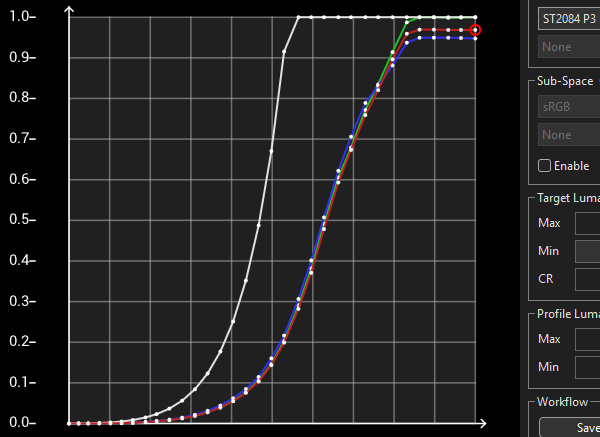
The following graphs show the Limit Range profile plotted against the full 10,000 nits ST2084 colour space and the user defined 1000 nits colour space.


The Limit Range profile can then be used to generate a calibration LUT to correct the in-built PQ EOTF.
- Generate a new ST2084 User colour space via the Manage Spaces library, with a peak set to the calibration target for the display - 1000 nits in this example
- In LUT Generation, set Source to the User Generated ST2084 colour space, and Destination to the Limit Range profile

The LUT generated will correctly map to the peak of 1000 nits, which is approx. 75% of the PQ code range, as defined by the Limit Range value (769, 10-bit).
The LUT operates between 0-769, in a 0-1023 (10-bit) container, and can be used to calibrate a PQ HDR display that has an underlying, burnt-in, PQ EOTF.
Initial Rec2020 Gamut
When a display is pre-calibrated to a PW EOTF it is almost certain that it will also be pre-calibrated to Rec2020 gamut.
This introduces another issue that must be overcome for accurate calibration, as outlined in the Pre-Calibration Issues page, as well as the Reduced Gamut Profiling page.
The issue is inherently similar to the Initial PQ EOTF issue, but affects saturation, rather than brightness.
Increased Resolution PQ LUT
A totally unique ColourSpace capability for PQ display calibration is the ability to normalise any PQ LUT to the maximum nits capability of the display, rather than to target the default 10,000 nits of the PQ HDR ST2084 standard.
This enables professional display manufacturers to maximise calibration resolution for PQ based HDR applications.
As a direct example, the following is an Increased Resolution LUT for the above Initial PQ EOTF calibration, with the LUT spanning the full range, so increasing calibration granularity.

LUT Generation Workflow
LUT Generation Workflow
To enable the generation of increased resolution PQ LUTs the Custom Ranges capabilities of ColourSpace are used, with a file called colourSpaceCustomRanges.csv located in the same directory as the ColourSpace .ini files - nominally C:\Users\xxxx\AppData\Roaming\ColourSpace.
The file data format is:
- Label, 0.0, 1.0
or
- Label, 0.0, 1.0, 0.0, 1.0
The values are min and max, or min src, max src & min dst, max dst depending the format used.
The values should be 0 or greater, and min must be smaller than max.
As an example, for a PQ cube where the full range of the LUT covers 70% of the code range, which is approximately 650 nits for a full range PQ display, then you could use:
- 70% Range, 0.0, 0.7
The entries held in the colourSpaceCustomRanges.csv file will appear in the Normal/Extended Range drop-down.
Note: The Active LUT function within ColourSpace will not work with a LUT generated using the Increased Resolution process, unless the LUT is first compressed back into the full PQ nits range using the LUT Manipulation tools.