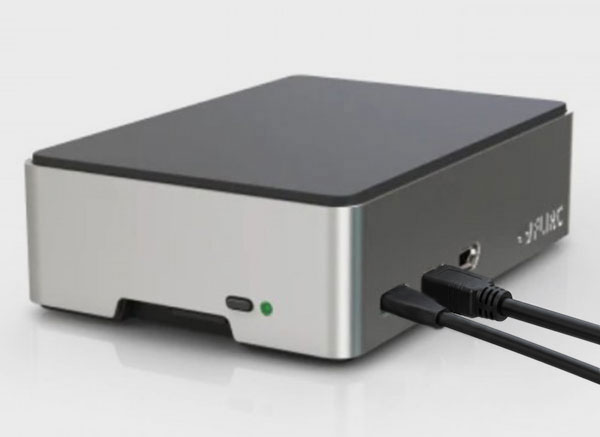
PiTPG turns a Raspberry Pi 4 or Pi 5 into a bit-perfect HDMI test pattern generator, controlled directly by ColourSpace, for the measurement, profiling and calibration of any HDMI display.
- ColourSpace INF/XPT/PRO/CAL/LTE & HTX/HTP/HTL & DPS/ZRO
- Raspberry Pi 4 and Raspberry Pi 5 (one SD card image for both)
- Bit-perfect 8-bit & 10-bit patches
- RGB, YCbCr 4:4:4 & YCbCr 4:2:2, up to 4K 60 Hz
- HDR10 & HLG
- Dolby Vision TV-led & Low-Latency
- USB & Ethernet connection, with optional Wi-Fi
- ColourSpace's inbuilt Test Patterns, drawn at the output resolution
- Impossible settings refused, with the reason shown in ColourSpace
- Ted's Edition, with Ted's calibration patterns in native 1080p & 4K, 8 & 10-bit, and your own TIFF, PNG, TGA & JPG images
- No Raspberry Pi hardware included
Raspberry Pi 4 (all models) and Raspberry Pi 5 are supported
(Older Raspberry Pi models, and other single-board computers, are not supported)
Overview
PiTPG can be used with all ColourSpace versions with profiling capabilities, including the ZRO licence version of ColourSpace for verification of any display, as well as all main versions of ColourSpace for full profiling and LUT based calibration.
ColourSpace controls PiTPG directly, via its PiTPG hardware option, so it can generate any required colour patch, either as a managed sequence for automated profiling, or manually selected for manual display calibration adjustment.
PiTPG is a new, modern Raspberry Pi test pattern generator, written from scratch by Light Illusion for ColourSpace users.
- Bit-perfect output in every format. The exact code values ColourSpace asks for reach the HDMI cable - in RGB, and also in YCbCr, which PiTPG calculates exactly itself rather than relying on the Raspberry Pi's own rounding converter.
- Raspberry Pi 4 and Pi 5. One SD card image runs on both, using a current 64-bit Raspberry Pi OS.
- Nothing is quietly changed. PiTPG reads the display's EDID, and if a setting cannot be done - a format the display does not accept, or a bit depth the HDMI link cannot carry - it refuses, and ColourSpace shows the reason. It never quietly sends something different, so nothing is measured in a mode you did not choose.
- Dolby Vision done properly. Both kinds of Dolby Vision, TV-led and Low-Latency, with PiTPG checking which kind the display accepts.
- Simple connection. A single USB cable to the ColourSpace PC, or Ethernet, or optionally Wi-Fi. ColourSpace connects directly, as with other ColourSpace Integrated hardware.
- No set-up on the Pi. No DeviceControl, and no logins. Until the first patch, a quiet information screen shows the addresses to type into ColourSpace and what is being sent.
Setup
What You Need
- A Raspberry Pi 4 or Raspberry Pi 5
- A microSD card
- A micro-HDMI to HDMI cable, to connect the Pi to the display
- A USB-C cable, to connect the Pi to the ColourSpace PC
(This both powers the Pi and connects it to ColourSpace - a Pi 4 or Pi 5 runs from the PC's USB port alone. If the Pi restarts by itself, or shows a low-power warning, try a different USB port, as older ports and unpowered USB hubs can supply less power. Alternatively, use the Pi's power supply and an Ethernet cable)
Choosing a Raspberry Pi
A Raspberry Pi 4 and a Raspberry Pi 5 give identical results with PiTPG - the same formats, bit depths, HDR and Dolby Vision, and the same exact values on the HDMI cable.
- Speed - PiTPG shows each new patch within a single video frame on either model, so a profiling run takes the same time on both: the time per patch is set by the display settling and the probe taking its reading
- HDMI - both have HDMI 2.0 outputs, so both give 4K 60 Hz in 8-bit RGB or 10-bit YCbCr 4:2:2, and 10-bit RGB up to 4K 30 Hz
(On a Pi 5 either HDMI port can be used for 4K 60 Hz; on a Pi 4 only the port next to the USB-C power socket) - Graphics - PiTPG does not use the Pi's graphics processor for drawing - it calculates every value itself, and the display hardware sends them out untouched - so the newer graphics processor of the Pi 5 makes no difference to the output
- Images - a Pi 5 loads large images faster, such as Ted's 4K 10-bit patterns with Ted's Edition
- Memory - PiTPG needs very little memory, even at 4K 10-bit, so any RAM size can be used, and more RAM gives no benefit
- Heat - a Pi 5 runs warmer than a Pi 4, so a case with a heatsink or fan is recommended
Writing the SD Card
- Download the PiTPG image file from Customer Downloads or General Downloads, and un-zip
- Download and install Raspberry Pi Imager
- Connect an SD card reader with the microSD card inside
- In Raspberry Pi Imager, choose the correct Pi model, and Use custom as the operating system, and select the PiTPG image file
- Select the SD card, and write the image to it
(In Raspberry Pi Imager, do not apply any OS customisation settings - PiTPG needs none) - When finished, place the SD card into the Pi
Start-up Screen
From power-on the display stays black - there are no start-up messages, and no Raspberry Pi logo page. A few seconds later, once PiTPG has started, it shows a quiet information screen in dim grey on black, until the first patch:
- The PiTPG version and edition
- Whether ColourSpace is connected
- The USB, Ethernet and Wi-Fi addresses to type into ColourSpace's Network Address
- The output being sent - resolution, refresh rate, colour format, bit depth and range - and SDR, HDR10, HLG or Dolby Vision
- The name of the connected display
The screen updates itself if anything changes, such as ColourSpace connecting or a network cable being plugged in. The first patch replaces it, and it returns a few seconds after ColourSpace disconnects. With Dolby Vision TV-led output the screen stays black, as that signal carries data in every pixel.
The logo page belongs to the Raspberry Pi's bootloader, which is stored on the Pi board itself, not on the SD card. PiTPG turns it off the first time it starts on a board, and the change shows from the next power-on. It stays off even if a different SD card is used later.
To turn the Raspberry Pi logo page back on:
- Put the SD card in a PC, and open the drive the PC can read (the boot partition)
- Create an empty file called
PiTPG-boot-screen-on.txt - Put the card back in the Pi, and start it twice
(The first start makes the change, the second shows it. To turn it off again, delete the file and start the Pi twice)
Updates
When a new version of PiTPG is released, download the new image file, and write it to the SD card in the same way as the original Setup.
There is no update over the network, and no login on the Pi - writing the new image is all that is needed.
Note: ColourSpace keeps PiTPG's settings, and sends them to PiTPG each time it connects, so nothing needs setting again after a new image is written.
With Ted's Edition, writing a new image also replaces the PiTPG-images folder, so keep a copy of your custom images on the PC, and copy them back after the update (see Ted's Edition).
ColourSpace Integration
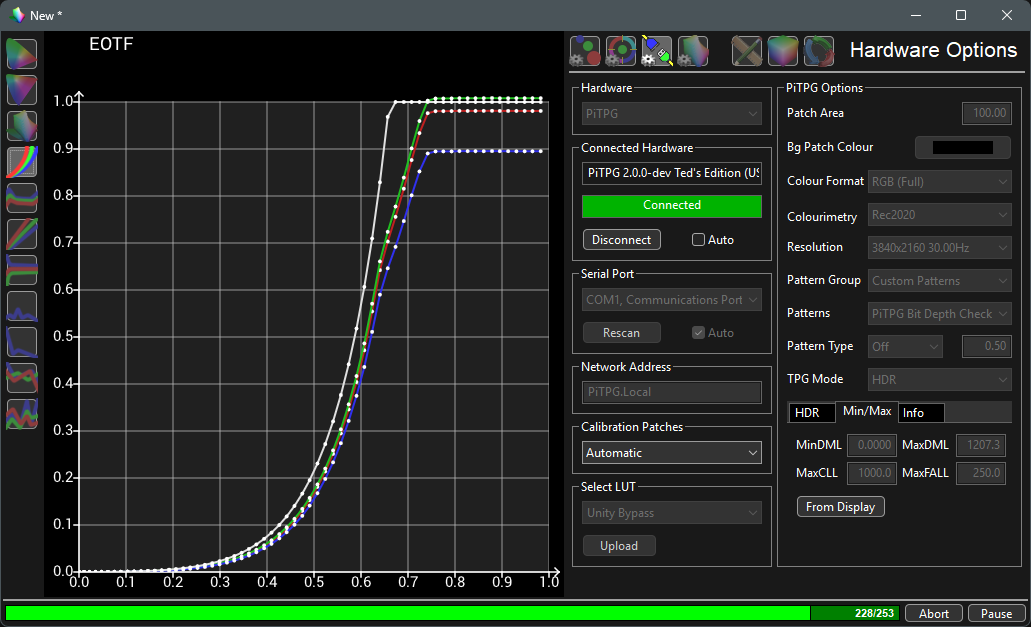
All PiTPG operation and functions are controlled via the Hardware Options menu, accessed via the Profiling window. PiTPG has its own entry in ColourSpace's Hardware list.
For a User Guide on the workflow used for display calibration see the 3D LUT Calibration guide, combined with the specific PiTPG information contained within this page.
Wi-Fi (Optional)
Wi-Fi is off unless it is set up. To use it:
- Put the SD card in a PC, and open the drive the PC can read - Windows shows it as bootfs
- Copy the file
PiTPG-wifi-example.txt, and rename the copyPiTPG-wifi.txt - Open
PiTPG-wifi.txtin a text editor, and set the three lines at the end:ssid=your network's name,password=its password, andcountry=the two-letter code of the country the Pi is used in (for example GB or US) - Put the card back in the Pi and power it on - the start-up screen shows its Wi-Fi address once it has joined the network
- In ColourSpace, type that address, or simply PiTPG.local, into the Network Address box, as for Ethernet
To turn Wi-Fi off again, delete PiTPG-wifi.txt. USB and Ethernet keep working either way, and are recommended for measuring, as Wi-Fi can add small delays. The password is stored on the card in plain text.
Initial Setup
- Connect an HDMI cable from the Pi to the display
(Either micro-HDMI port can be used on a Raspberry Pi 5. On a Pi 4, use the port next to the USB-C power socket for 4K 60 Hz) - Connect the Pi to the ColourSpace PC with a USB-C cable, or connect it to the same network as the PC with an Ethernet cable
USB: the Pi is always at 10.10.12.1, and gives the PC its own address automatically - no network set-up is needed
Ethernet: the Pi gets its address from the network, and announces itself as PiTPG.local - Start ColourSpace, and power on the Pi
- Open a ColourSpace Profiling window, select Hardware Options, and select PiTPG from the Hardware drop-down list
- Select Connect
ColourSpace connects to PiTPG directly, as with other hardware: to the address typed into the Network Address box, or over USB. Connected Hardware then shows which PiTPG is connected, its version and how, for example PiTPG 2.0.0 (USB), PiTPG 2.0.0 (Network PiTPG.local), or PiTPG 2.0.0 Ted's Edition (USB)
For USB, leave the Network Address box empty. For Ethernet, type the Pi's address, or simply PiTPG.local, into the Network Address box
The Network Address box is shared with ColourSpace's other network hardware, so clear any address left from another device - otherwise ColourSpace tries that address first, and connecting takes longer - Set the Colour Format in the PiTPG Options - RGB, YCbCr 4:4:4 or YCbCr 4:2:2 - and the Resolution
- Set the bit depth and Patch Scale as required within the ColourSpace Settings window
(See Settings, below) - Using Calibration Patches select the desired patch option to use for profiling
Off - black, no patches
Automatic - the patch size, position and background colour set within the ColourSpace Settings window (the normal choice)
Small, Medium and Full - fixed patch sizes of 10%, 50% and 100% of the screen area, on a black background
Custom - the Patch Area and Bg Patch Colour set within the PiTPG Options, for a patch size and background just for PiTPG, without changing the ColourSpace Settings (these two options are only active with Custom)
Note: The keyboard 'O' key can be used within the Manual Measure and Hardware menus to quickly Disable/Enable the TPG
As soon as the Calibration Patches are set to Automatic the output of PiTPG will display the patch colour as defined within the ColourSpace Manual Measure and Characterisation menus.
- The Pattern Group, Patterns and Pattern Type options show Ted's calibration patterns, and your own custom images, with Ted's Edition of PiTPG
(If Ted's Edition has not been purchased, Ted's pattern groups do not show in the Pattern Group drop-down)
Settings
PiTPG sends exactly the values ColourSpace asks for, in the format chosen, or refuses with the reason. It never rescales or converts the values on the way.
- Bit depth - patches are 8-bit or 10-bit, as set by the ColourSpace Settings Resolution bit depth. The Raspberry Pi's display hardware is limited to 10 bits per channel, so 12, 14 and 16-bit settings are sent as 10-bit, with no warning, as this makes no measurable difference.
- Range - ColourSpace sets Legal, Full or Extended values itself, via Patch Scale (see TPG Operation). For RGB, PiTPG labels the HDMI signal to match - Full as Full range, Legal and Extended as Limited range - so a display on automatic range reads black and white correctly. YCbCr is always Legal range, so set Patch Scale to Legal. TV-led Dolby Vision accepts Full or Legal (see below).
- 4K 60 Hz - the Raspberry Pi's HDMI output is limited to HDMI 2.0 bandwidth, so 4K 60 Hz is possible in 8-bit RGB, or 10-bit YCbCr 4:2:2. 10-bit RGB at 4K 60 Hz needs more bandwidth than HDMI 2.0 can carry, so is refused - use 4K 30 Hz, 8-bit, or YCbCr 4:2:2.
- Display checks - PiTPG reads the display's EDID, and refuses formats and bit depths the display does not list.
Refused Settings
If a setting cannot be done, ColourSpace shows a PiTPG message with the reason, such as 10-bit RGB at 4K 60 Hz, or a YCbCr format the display does not accept. The output stays as it was, and patches are refused until working settings are chosen, so nothing is ever measured in a mode that was not selected.
Hovering the mouse over Calibration Patches shows what PiTPG is actually sending - format, range, bit depth, HDR or Dolby Vision mode - as well as any quiet adjustment, such as a 12-bit setting sent as 10-bit.
If the HDMI link to the display is interrupted during a measurement run - for example the display resets, changes input, or is switched off - ColourSpace shows a PiTPG message saying when it happened. The display may have reset or changed its picture settings, so the readings taken across it can't be combined: check the display, then run the measurements again from the start.
Profiling Operation
To activate PiTPG navigate to the desired profiling mode within ColourSpace - Manual Measure, or Display Characterisation.
The output of PiTPG will mimic the colour displayed, using the patch settings defined via the Hardware Options and Settings menus.
Profiling can then be performed as normal, using the probe connected to the ColourSpace PC, with PiTPG displaying the required patches on the HDMI connected display.
Test Patterns
The Test Patterns in ColourSpace's Manual Measure window - such as Probe Alignment, Contrast, Brightness, ANSI, Corner-Box, Granger, the black to white ramps and FALD - also appear on the PiTPG output, with Calibration Patches enabled. PiTPG draws each pattern itself at the output resolution, so it is sharp at any resolution, with levels following the ColourSpace Patch Scale - Legal, Full or Extended - in every output mode, including YCbCr, HDR and Dolby Vision. Each test pattern fills the patch area set by the Patch Size and position, with the patch background around it, so it appears exactly where the probe measures - with a full-screen Patch Size it fills the screen. Selecting a test pattern replaces the patch, and turning the test pattern off, or measuring a patch, returns to the normal patch display.
LUT Use
After profiling, a Calibration LUT can be generated as normal within ColourSpace LUT Tools, and used where required, either within a grading system, a LUT box, or uploaded directly into a suitable display.
Calibration Guides
3D LUT Calibration Manual CalibrationHDR & Dolby Vision
The HDR mode is set via the TPG Mode option within the PiTPG Options:
- SDR - no HDR signalling
- HDR - HDR10 (ST2084/PQ) or HLG
- DV TV-led - TV-led Dolby Vision, as with real content
- DV TV-led Calibrate and DV TV-led Verify - TV-led Dolby Vision calibration modes
- DV Low-Latency - Low-Latency Dolby Vision
HDR10 and HLG
Select HDR as the TPG Mode, and set the EOTF - ST2084 or HLG - and the Primaries/WP on the HDR tab.
For ST2084, the mastering display's minimum and peak brightness, and the MaxCLL and MaxFALL values, are set on the Min/Max tab, as MinDML, MaxDML, MaxCLL and MaxFALL. As with all PiTPG Options, these are set with Calibration Patches off. Type a value and press Enter: it is sent to PiTPG straight away, with no need to change the HDR mode, and the display is not re-synced. HLG has no such metadata, so those values are greyed out with HLG.
For professional HDR displays set to HDR mode manually, the metadata values should not matter, as there is no tone mapping. With consumer TVs, which use tone mapping, the TV will respond differently to different metadata values - set them as needed to see how the TV responds.
The TV's picture mode matters just as much. On an LG CX, the default HDR picture mode brightened the mid-range to about twice its PQ value, and gave a strongly blue white. In the HDR Cinema mode, PiTPG's HDR10 patches followed PQ to within about 7%, from 1 nit up to the panel's peak, with a D65 white and the panel's full colour gamut. Choose the most accurate picture mode (such as Cinema or Filmmaker Mode) before measuring, and turn off any dynamic tone mapping where the TV allows it.
Dolby Vision
There are two quite different kinds of Dolby Vision - TV-led, where the display does the Dolby processing, and Low-Latency, where the source does it - and a display may accept one, the other, or both. See Dolby Vision for how they differ, and what each means for calibration.
PiTPG reads the Dolby Vision information in the display's EDID. If the chosen kind is not one the display accepts, it refuses, and ColourSpace shows a message saying which kinds the display does accept.
TV-led Dolby Vision is sent as Dolby specifies: 12-bit YCbCr 4:2:2, with Dolby's metadata embedded in every frame, packed into an 8-bit RGB signal.
- Set the Colour Format to RGB, and Patch Scale to Full or Legal, with 8 or 10-bit patches
(PiTPG converts the patch values into Dolby's own 12-bit signal, so Full and Legal give exactly the same Dolby Vision signal for the same colour. Full is potentially the better choice, as it has finer steps - 1,024 levels at 10-bit, against 877 for Legal - and 10-bit patches keep their full precision within the 12-bit signal. Extended is refused, as Dolby's signal has no room above 100%) - 4K 60 Hz is available where the display accepts TV-led Dolby Vision at 4K 60 Hz - otherwise up to 4K 30 Hz is used
- The Dolby metadata describes the mastering display, taken from the PiTPG Options: MaxDML and MinDML on the Min/Max tab for its peak and minimum brightness, and Primaries/WP on the HDR tab for its colour container (P3, or Rec.2020)
(The display's Dolby processing fits the patches from that mastering display to its own panel, as with real content. A mastering peak above the display's own peak means the patches are compressed to fit, and one below it can mean they are stretched up to use the display's full range - so the values set change what is measured. For measurement, set MaxDML to the peak the display declares in its Dolby Vision block - From Display on the Min/Max tab fills it in, with MinDML: on the ASUS PA32UCX, 1200 gave greys within 2-5% of PQ up to about 1,000 nits) - DV TV-led gives a normal Dolby Vision picture, and works on every TV-led display
- DV TV-led Calibrate (Relative) and DV TV-led Verify (Absolute) are Dolby's calibration modes, which have to be built into the display, and are found mainly on LG OLED TVs, and some other TVs, such as the TCL 65C855X1 we tested. A display without them shows a flat red (Verify) or green (Calibrate) screen instead - use DV TV-led
(On an LG CX, Calibrate and Verify measured the same with PiTPG as with the Murideo SIX-G, to within about 1%. Some TVs apply processing of their own even in Verify - see Dolby Vision)
Low-Latency Dolby Vision is sent as PQ Rec.2020 patch values, with the Dolby Vision low-latency signalling, and no Dolby metadata.
- Two signal forms can be used, if the display accepts them: RGB (10 or 12-bit link, as the display's Dolby Vision block lists, up to 4K 30 Hz; Full or Legal range), or YCbCr 4:2:2 (Legal range, up to 4K 60 Hz)
(Both measure the same - on the ASUS PA32DC they matched to within 0.1%) - Where the display's Dolby Vision block allows it, PiTPG tells the display the patches are in a Rec.2020 colour container, which they are; otherwise the display's own colour container is signalled, as Dolby specifies. The Calibration Patches hover shows which is in use
(On the ASUS PA32DC, signalling Rec.2020 brought the measured colours clearly closer to the Rec.2020 targets) - Keep the patches within the display's real peak brightness, using ColourSpace's Limit Range (see PQ HDR Calibration), as patches beyond it are desaturated, rather than clipped
(Measure the peak, with the display settings you will use, rather than relying on the peak stated in the display's EDID: actual display capabilities can vary, and if the true peak is lower than the EDID's stated peak, the measured results will differ from the targets)
Everything between PiTPG and the display must pass the Dolby Vision signal unchanged. Some HDMI switches, splitters, extenders and HDR injectors, especially older ones, drop the Dolby Vision information, and the display quietly falls back to its normal mode. Always check the display shows it is in Dolby Vision mode before measuring, and connect PiTPG directly if in doubt.
Ted's Edition
Ted's Edition is PiTPG with image patterns and extra tools added: the calibration patterns from Ted's LightSpace CMS Calibration Disk, signal chain check patterns, your own custom images, and the PiTPG Info window and support file. Everything else works exactly as the standard PiTPG.
- Ted's patterns are Ted's own product as seen on Ted's LightSpace calibration disc, and come with a Ted's Edition PiTPG image file, written to the SD card in the same way as the standard image (see Setup)
- Once connected, Connected Hardware shows the edition, for example PiTPG 2.0.0 Ted's Edition (USB)
- The standard PiTPG has no image patterns, so the Pattern options stay empty
Showing a Pattern
- Set Calibration Patches to Off
(Ted's patterns and custom images are full-screen images, shown instead of patches) - In the PiTPG Options, choose the Pattern Group - Custom Patterns for your own images, or one of Ted's groups: Pre Calibration Tools, and Color Reproduction 01 to 12
- Choose the pattern from Patterns
(The first entry in each of Ted's groups is Preview, an overview of all the patterns in that group, with their names) - Set the Pattern Type:
Static - the pattern
Flash - patterns made as a flashing pair, such as Ted's Brightness and Contrast Flashing Bars, alternating at the flash time set next to it
Info - Ted's information screen for the pattern, describing what it is for and the values it uses
Off - no pattern (a black screen, as Calibration Patches are off)
Images are shown untouched - no colour management, gamma or filtering - so every value in the image file is the value sent to the display. Images are never scaled: each image pixel is one screen pixel (1:1), centred on the screen, with the pattern's background around an image smaller than the output.
Native 1080p & 4K, 8 & 10-bit
Every one of Ted's patterns is included in four versions, and PiTPG automatically shows the one that matches the output:
- 1080p 8-bit - Ted's original patterns
- 1080p 10-bit - with ramps and gradients recalculated at 10-bit, so they are smooth, rather than in 8-bit steps
- 4K 8-bit and 4K 10-bit - built at native 4K resolution, rather than enlarged:
Ramps and gradients are recalculated at 4K (and at 10-bit for the 10-bit version)
Fine detail patterns - 1, 2 and 3-pixel lines and checkerboards - stay exactly 1, 2 and 3 pixels wide, so they test what their labels say
Star charts and zone plates are drawn fresh at 4K, using Ted's original geometry
Flat areas keep the exact levels in every version, and the smooth 10-bit ramps and gradients stay within half an 8-bit step of the originals, so nothing measures differently. On other output resolutions, such as 1440p, the 1080p version is shown 1:1 in the centre of the screen.
Range
- Ted's patterns predominantly use video levels: black at 16 and white at 235, with steps below black and above white for the Brightness and Contrast patterns. Set the ColourSpace Patch Scale to Legal before showing them, so PiTPG labels the HDMI signal as Limited range and the display reads black and white correctly
(For example, in Legal the Brightness Flashing Bars below patch 16 merge into black on a correctly set display, as intended. In Full, all the bars are visible) - After changing Patch Scale, set the Pattern Type to Off and back to Static or Flash, so the pattern is sent again with the new range
Signal Chain Check Patterns
Three check patterns show whether anything between PiTPG and the display - an AV receiver, an HDMI switch or splitter, or the display's own processing - is changing the picture. PiTPG draws them itself at the output resolution, so every pixel of the pattern is one pixel on the screen. They are listed in the Custom Patterns group, in name order with your own images (all three names begin with PiTPG), and are shown in the same way as any other pattern, with Pattern Type set to Static:
- PiTPG Chroma Check - four blocks: fine red and blue vertical lines, fine horizontal lines, a red and blue checkerboard, and a plain magenta block
If all three patterned blocks show crisp red and blue lines, full colour detail (4:4:4) reaches the display. If the vertical lines and checkerboard blur into the same magenta as the fourth block, colour detail is being halved horizontally somewhere (4:2:2); if the horizontal lines blur as well, it is halved in both directions (4:2:0) - PiTPG Pixel Check - a one-pixel white border around the very edge of the picture, and blocks of one-pixel black and white lines in each corner, with a one-pixel checkerboard in the centre
All four edges of the border should be visible - if any are missing, the display is overscanning (cropping the picture), so turn on its 'Just Scan', 'Full Pixel' or '1:1' setting. The fine lines should look like even, crisp grey texture - if they show coloured bands, a moiré pattern or blur, the picture is being scaled or sharpened - PiTPG Bit Depth Check - the same dark grey ramp twice: the upper ramp in single 10-bit steps, the lower ramp in 8-bit steps (four times larger)
On a 10-bit signal chain the upper ramp looks smoother than the lower one. If both show the same visible steps, something in the chain is reducing the signal to 8-bit. This pattern needs a 10-bit PiTPG output, and is refused with a message on an 8-bit one
The fine detail is single pixels, so look closely - a magnifying glass held to the screen helps a lot, or zoom in on a phone photo of the screen. The check patterns follow the Patch Scale setting: video levels with Legal, full levels with Full. As with Ted's patterns, after changing Patch Scale set the Pattern Type to Off and back to Static.
Custom Images
Your own images, such as Light Illusion's calibration images, can be added to the Custom Patterns group:
- Put the SD card in a PC, and open the drive the PC can read - Windows shows it as bootfs
- Copy the image files into the
PiTPG-imagesfolder
(Directly into that folder - images in sub-folders are not listed. Images are shown 1:1, never scaled, so make them the size of the output resolution to fill the screen) - Put the card back in the Pi, power it on, and connect ColourSpace
(ColourSpace reads the list of images when it connects, so reconnect after adding images) - Supported formats: TIFF (8 or 16-bit; uncompressed, LZW, ZIP or PackBits; RGB, greyscale or palette), PNG (8 or 16-bit), TGA and JPG
(16-bit images are sent as 10-bit values, so need a 10-bit output. Tiled and floating-point TIFF files are not supported, and are refused with the reason) - To make a flashing pair, name the two files
Name (A)andName (B); an information screen for it can be added asName (Info) - Writing a new PiTPG image to the card replaces the
PiTPG-imagesfolder - keep a copy of your images on the PC
As with patches, if a pattern cannot be shown - for example, if the output is set to a format PiTPG cannot send, such as 10-bit RGB at 4K 60 Hz - ColourSpace shows a PiTPG message with the reason.
PiTPG Info and Support File
With Ted's Edition, the Info tab of the PiTPG Options has two more buttons, next to View EDID:
- PiTPG Info - a window showing exactly what PiTPG is sending (resolution, refresh rate, colour format, bit depth, range, and SDR, HDR10, HLG or Dolby Vision, with its settings), why - for example, why the output is 8-bit rather than 10-bit - and what the display says it can accept: its colour formats, bit depths, HDR and Dolby Vision support, and its stated peak and black levels. Press Refresh after changing a setting
- Save Support File - saves a single text file with all of the above, plus PiTPG's settings, the display's EDID and PiTPG's logs. If something doesn't work as expected, send this file with your support request
(The display's stated figures are its own claims - actual capabilities can vary)