Anyone coming from professional film and TV is used to video interfaces where the picture is simply the picture. Consumer HDMI is different: alongside the picture, the source sends small labels, called InfoFrames, that tell the display how to interpret it - and the display believes them.
Get the labels wrong and a perfectly correct signal is displayed wrongly. Calibrate with the wrong labels and you calibrate a mode that real content never uses.
An InfoFrame never changes a single pixel value. It changes what the display does with the pixel values - which decoding, which range, which picture mode, which tone mapping.
A Two-Way Conversation
HDMI is a conversation between the source and the display, and the picture is only part of it.
- EDID - the display talks. When connected, the display hands the source a description of itself: the resolutions and frame rates it accepts, colour formats, bit depths, which HDR systems it supports, and so on. The source is expected to send only what the display says it can handle.
- InfoFrames - the source talks. With every frame, the source sends short data packets, tucked into the gaps between lines of picture, saying what it is sending: the colour format, the range, the colour space, whether it is HDR, and more.
- The picture. The pixel values themselves - which on their own carry no information about how they should be interpreted.
The nearest equivalent in the professional world is the SDI payload identifier (SMPTE ST 352). The difference is that consumer displays act on these labels far more, switching processing, picture modes and tone mapping depending on what they are told.
The Main InfoFrames
A handful of InfoFrame types matter for picture quality and calibration.
| InfoFrame | What it tells the display | What goes wrong if it is wrong or missing |
|---|---|---|
| AVI (Auxiliary Video Information) | Colour format (RGB or YCbCr 4:4:4, 4:2:2, 4:2:0), range (Full or Limited), colour space (Rec.709, Rec.2020...), the video format, picture aspect ratio, and the type of content | Raised or crushed blacks and whites, wrong colours, the wrong picture mode |
| HDR (Dynamic Range and Mastering) | The transfer curve - SDR, PQ or HLG - plus optional 'static metadata' describing the mastering display and the content's brightness | An HDR signal shown as SDR (or the reverse), or different tone mapping |
| Vendor-Specific | Anything a particular system needs: HDMI's own 4K and 3D formats, Dolby Vision, HDR10+ | The display doesn't switch into Dolby Vision or HDR10+ mode |
| SPD (Source Product Description) | Who the source is, and what kind of device - for example a PC, a games console or a Blu-ray player | The display may choose a different picture mode, such as a 'PC' mode |
| Audio | The audio format | No effect on the picture |
The AVI InfoFrame
The AVI InfoFrame is the one that matters most - it is sent with every frame, by every source.
Colour format
Says whether the pixels are RGB or YCbCr, and for YCbCr, whether colour is at full resolution (4:4:4) or reduced (4:2:2, 4:2:0). If this is wrong, the display decodes the numbers as the wrong kind of signal, and the picture is unwatchable - usually green and magenta.
Range (Full or Limited)
Says whether black and white sit at the ends of the code range (Full, 0-255 at 8-bit) or inside it (Limited, also called Legal or Video range, 16-235 at 8-bit). There are separate flags for RGB and YCbCr. This is where most real-world problems come from:
- Limited values shown as Full - blacks look grey, whites look dull, the picture looks flat.
- Full values shown as Limited - shadow detail is crushed to black, highlights clip to white, and colours look over-saturated.
The range flag can also say 'Default', meaning 'whatever is normal for this video format'. For TV formats such as 1080p or 2160p, the default is Limited; for PC formats, the default is Full. So a display reporting 'Default RGB' on a 4K TV signal is treating it as Limited. On top of that, some displays only honour an explicit Full or Limited flag if their EDID says they can switch range on request; others simply ignore the flag.
For a calibration signal, the range in the AVI InfoFrame should match the range of the values actually being sent. See TPG Operation - Range Signalling for how this works with ColourSpace, and the Data vs Legal TV Levels page for what each range mismatch looks like on screen.
Colour space (colorimetry)
Says which colour space the signal is in - Rec.601, Rec.709 or Rec.2020 - and for YCbCr, which maths was used to convert from RGB. A display may use it to select its gamut, and it must use it to convert YCbCr back to RGB correctly. If the YCbCr maths doesn't match, colours shift: reds and greens are the most visibly affected.
Video format and content type
A code for the video format (resolution and frame rate), the picture aspect ratio, and flags saying what kind of content it is - graphics, photo, cinema or game. Some displays switch picture mode or processing on the content type, such as entering a game mode with less processing.
The HDR InfoFrame
The HDR InfoFrame switches the display into HDR - and may change how it tone maps.
Its most important field is the transfer curve: SDR, PQ (SMPTE ST 2084, used by HDR10) or HLG. With no HDR InfoFrame, the display assumes SDR.
For PQ it can also carry 'static metadata': the primaries, white point and brightness range of the display the content was mastered on, and the brightest pixel (MaxCLL) and brightest average frame (MaxFALL) in the content. Displays that can't reach the mastering brightness may use these values to decide how to tone map, so changing the metadata can change the measured result on such displays. When calibrating, use metadata that matches the content the display will be used for - in ColourSpace this is set in the HDR options for the test pattern generator. HLG needs no metadata at all, as it is relative to the display, not absolute.
Dolby Vision and HDR10+ go further, with their own Vendor-Specific InfoFrames and dynamic metadata. See Dolby Vision Explained for the two Dolby Vision signals.
The SPD InfoFrame - a Real Example
Even the InfoFrame that just names the source can change the picture.
The SPD InfoFrame carries the source's name and its type: PC, games console, Blu-ray player and so on. Many sources send it without anyone noticing - for example, a standard Linux HDMI driver labels itself as a PC.
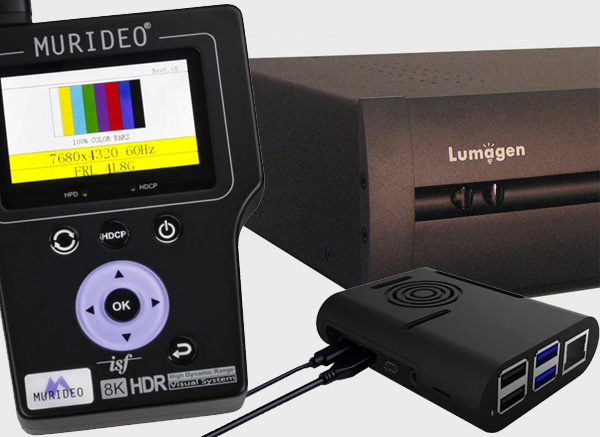
During development work on a Raspberry Pi based test pattern generator, an ASUS ProArt PA32DC monitor showed Low-Latency Dolby Vision with its colours limited to Rec.709, while a Murideo SIX-G sending the same picture and the same Dolby Vision signalling gave the monitor's full gamut. The only difference was the Pi's SPD InfoFrame saying 'PC'. With it removed, the measurements matched the SIX-G exactly.
If two generators send identical pixel values but measure differently, compare all their InfoFrames, not just the picture.
What It Means for Calibration
Calibrate with the same labels real content will use.
- Match the labels to the values. The range, colour format and colour space flagged by the test pattern generator must describe the values actually being sent. ColourSpace's own range setting decides the values; the generator's InfoFrames must agree with it.
- Match the labels to real viewing. A display may use different processing for different labels. Calibrating in Full range RGB while all viewing is in Limited range YCbCr, or with HDR metadata very different from real content, can mean calibrating a mode that isn't used.
- Check what the display thinks it is receiving. Most displays have an information screen showing the format, range and HDR mode. Use it - it is the quickest way to spot a mismatch.
- Watch the HDMI chain. Switches, splitters, extenders and HDR injectors can rewrite or drop InfoFrames, while passing the picture untouched. An HDMI analyser shows what actually arrives - but only if it passes everything on unchanged itself.
- Compare everything when results differ. Two sources with identical pixel values can still produce different results, if their InfoFrames differ.
Common Misunderstandings
- 'The display shows RGB Full, so the signal is Full range.' The display shows what the InfoFrame says - or what it has assumed. It cannot see the actual values. A source can label Limited values as Full, and the display will believe it.
- 'Default range means Full.' For TV video formats, Default means Limited.
- 'InfoFrames are only for HDR.' The AVI InfoFrame is sent with every frame of every signal, SDR included, and it controls range and colour decoding.
- 'Same pixels, same picture.' Not if the labels differ - different InfoFrames can select different decoding, picture modes or tone mapping.
- 'Changing the HDR metadata is harmless for calibration.' Displays that tone map may use it, so the same patches can measure differently with different metadata.