| Forums | File Bank | Polls | Search | Statistics |
  ?  
You must be logged in to post content on this forum.
Display Calibration Light Illusion Forums / Display Calibration /  
 

Difference between Unity Bypass, Default Unity and when to use each

 
Author auteur Male
ZRO

#1 | Posted: 13 Feb 2025 17:24 
Hello!

In Settings > Active LUT, there are options for None and Default Unity, while in Hardware (PGen) > Select LUT, there are options for Unity Bypass and Default Unity.

When using a LUT box, such as the Blackmagic Design Micro Converter BiDirectional SDI/HDMI 12G, should I upload a Default Unity LUT (BMD33 .cube), or should I leave it as is with the HDMI output unchecked?

Is the information below correct, and when should each option be used?

1. Settings > Active LUT
- None completely disables LUT processing in software. The signal passes through untouched.
- Default Unity enables LUT processing but applies an identity LUT where input values map directly to output values, keeping the signal unchanged while ensuring the LUT pipeline is active.

2. Hardware (PGen) > Select LUT
- Unity Bypass fully disables LUT processing in the hardware pattern generator, ensuring the display is profiled in its natural, unaltered state.
- Default Unity applies an identity LUT, meaning the LUT engine is engaged but the output remains unchanged. This is useful for verifying the LUT pipeline.

LUT Box (BMD Micro Converter BiDirectional SDI/HDMI 12G)
- When profiling a display, you should leave the HDMI output unchecked, meaning no LUT is applied. This ensures the profiling process captures the uncalibrated state of the display.
- When verifying LUT processing, you can upload a Default Unity LUT (BMD33 .cube) to confirm that the LUT engine is functioning correctly without altering the image.
- When applying the final calibration, you should upload the generated 3D LUT into the LUT box for proper correction.

Summary:
- For profiling, use Unity Bypass or leave HDMI output unchecked in the LUT box.
- For verification, use Default Unity or upload a Default Unity LUT to the LUT box.
- For calibration, upload the final 3D LUT to the LUT box.

BMD 3D LUT
BMD 3D LUT

Author jonzener
ZRO

#2 | Posted: 13 Feb 2025 17:43 
Hi,

As someone who has the BMD converter and uses it as a LUT holder, I'd suggest that use that converter itself as the LUT holder to do the verification pass.

That said, it is easier if you can do this via a USB extension cable to the BMD so you can keep it plugged into your computer and you don't have to keep taking it out of line.

Also, I've found that the BMD won't pass the 10 bit output from a PGenerator, just 8 bit. So if you're using a 10 bit signal and a PGenerator, I found you would need to take it out of line anyways. It passes normal 10 bit fine, just not from PGenerator for some reason. At least that's the case for me.

Active LUT is great as a way to quickly compare LUTS in colourspace before you export them to the BMD. Make sure that you apply the Video Clip to the LUT before exporting them. However for the active LUT you don't apple VC.

I personally have never used the PGenerator LUT settings you mentioned. But do upload a unity LUT to it before using the active LUT function.

Let me know if you have any questions about this.

Take care,

Jonathon

Author auteur Male
ZRO

#3 | Posted: 13 Feb 2025 20:27 
Hi Jonathon,

Thank you very much for the information. I truly appreciate it. However, I have already discovered much of it through extensive testing and trial and error.

My monitor is a true 10-bit IPS panel.

Using a correlation file for the ColorChecker Display Plus (obtained from ColorimeterCorrections and converted to CSV using `ccss2csv`), I found that after warming up the panel for 1–2 hours, the deviation from the target (peak white, D65) is approximately x 0.0000, y 0.0000 or 0.0001 when using 10-bit and the correlation file.

However, when switching to 8-bit with the same correlation file, the deviation increases to approximately x 0.0020, y 0.0012—this occurs with exactly the same RGB Gain settings in both 10-bit and 8-bit measurements. I suspect this is due to rounding errors when converting from 10-bit to 8-bit, though it may not have a practical or noticeable difference. That said, the issue I encounter is not with peak white but rather in near-dark areas.

I fully understand the 10-bit profiling issue. If we profile the display in 10-bit without the BMD 12G in-line, the profile does not account for any potential errors introduced by the BMD 12G.

On the other hand, if we use 8-bit with the BMD 12G between the PGenerator and the monitor, that setup is not as precise as 10-bit, as shown in my example above. As a result, neither option seems entirely optimal.

I always keep the BMD 12G connected via USB to the ColourSpace laptop, occasionally, I also connect it to the monitor's USB port afterward.

Video Scaling Settings
Could you please share what settings you use for Video Scaling?

Is it dependent on the monitor, or is there a general approach for BMD 12G?
I have not yet determined the correct scaling method, nor whether I need to apply two scaling options and in what order.

Unfortunately, I have not had time to test this thoroughly using images, as most of my calibration work happens late at night—often at the cost of sleep.

From my tests, enabling Clip Black results in a slightly lower (±0.02 better than Pass Black or the other options, if I remember correctly) dE2000 during the verification of 1,000 patches, but I am uncertain if this is the most accurate and correct setting for color-critical work. I tried some test patterns to analyze what each Video Scaling option does, but I don't remember the exact findings. I also recall a discussion on a thread at liftgammagain (possibly on Eizo) about a similar scaling issue on some specific model which handles 3d lut different from all others Eizos.

dE2000 Accuracy and Low-Dark Area Issues
While dE2000 is a useful metric, I've noticed that in low-dark areas, visual assessment sometimes suggests discrepancies that aren't fully reflected in the numbers.

Even when achieving dE2000 values as low as 0.15 (IPS) and 0.24 (LG OLED) 1,000-patch verification, I still notice red-tinted grays in low-dark areas on both displays, which reduces the perceived accuracy of the calibration.

To verify visually my calibration, I use the excellent patterns from TED. I also upgraded my license for TedCalibrationDisc, allowing me to use the patterns inside ColourSpace.

I've noticed that standard 10³ verification doesn't emphasize low-dark regions enough, where most issues occur. Given that IPS panels aren't known for deep blacks, particularly in dark blue areas, I'm wondering if this issue is related to my specific monitor or if my workflow needs adjustments. Surprisingly, factory calibration seems to handle dark gray areas better than my ColourSpace calibration. Obviously, those with high-end spectros and probe matching (rather than correlation files) likely achieve much better results.

Blackmagic Converters Setup Software Issue
Yesterday, I updated the Blackmagic Converters Setup software

- Help > About Converters Setup correctly shows Version 10.3.
- However, Setup > Software still lists it as Version 9.0.1.

I tried uninstalling and reinstalling, but the issue persists. I am not overly concerned about this, but I read discussions on LiftGammaGain about magenta-related issues with the BMD 12G, and I was hoping this update might have resolved them.

PGenerator Resolution and Signal Processing
Have you tested different resolutions from PGenerator to analyze how it processes the signal?

My PGenerator settings are:
- Color Format: RGB (Full)
- Colorimetry: Rec. 709

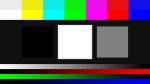
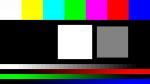
When using 2160p@24, and I display the Bars & Black Pattern, I get the correct Display Screen Correct behavior, based on the excellent guide regarding Data vs. Legal TV Levels. The relevant pattern can be found under: Pre-Calibration Tools > Bars & Black Pattern > Static (If you also have TED's patterns).

However, when switching to 1080p (at any frame rate), the Bars & Black Pattern appears clipped (like Display Screen Clipped from the guide), even though all other settings remain the same as for the 2160p signal.

When I connect the PGenerator directly to the monitor, this issue does not occur—regardless of resolution or frame rate, the Bars & Black Pattern remains correct (Display Screen Correct).

This suggests that the BMD 12G is modifying the 1080p signal in some unexpected way. I have read about different signal paths on monitors based on resolution, but that does not seem to apply here, as both signals are 1080p, and yet the BMD 12G handles them differently.

I would greatly appreciate your insights on these issues.

Best regards,
Spiros
Display Screen Clipped
Display Screen Correct

Author Steve Male
INF

#4 | Posted: 14 Feb 2025 01:31 
You are confusing two totally different things.

Active LUT is a totally different operation to LUT Uploads (what is Select LUT for a LUT Upload) within Hardware options for devices with LUT capability.
This is explained within the User Guides.

For Hardware operation, Default Unity LUT uploads a 'real' unity LUT.
(The Default Unity LUT can be seen in the Working LUTs library!)
Unity Bypass uses the hardware's API to 'reset' settings within the signal path, including any LUT.

Steve
Steve Shaw
Mob Boss at Light Illusion

Author auteur Male
ZRO

#5 | Posted: 14 Feb 2025 03:02 
Hi Steve,

Thanks for your response! I appreciate the clarification.

I realize that my original question may not have been as clear as I intended—English isn't my native language, so I sometimes miss subtle nuances in technical terms. Apologies if that caused any confusion.

To clarify, my main question was whether the information I provided in my first message correctly describes the use of Unity Bypass and Default Unity, and whether there's any benefit to using Default Unity on the BMD 12G, versus simply leaving Display 3D LUT on > HDMI Output, unchecked for profiling (i.e., without any 3D LUT loaded as seen in the screenshot at the first post).

I initially assumed that the Select LUT option in the PGenerator settings was relevant for choosing Unity Bypass or Default Unity. However, I later realized that these options are greyed out, likely just part of the template for compatible hardware. (Interestingly, they are selectable, but the Upload button is greyed out. Shouldn't the Select LUT dropdown also be greyed out when the PGenerator is connected, since it can't be used with the PGen?) That was my mistake!

I use Active LUT all the time for verifying 3D LUTs before applying them—it's a really useful feature, so thanks for that!

Also, I want to say thank you for the ColourSpace guides. They've been incredibly helpful, and even though I've read them multiple times, I still have some small, nuanced questions. I plan to start a separate topic for those, specifically regarding 3D LUT calibration, data vs. legal levels, and the Resolve grading workflow. I'll come back with a different post, hopefully with clearer questions. I really appreciate your patience!

Best regards,
Spiros

Author Steve Male
INF

#6 | Posted: 14 Feb 2025 03:45 
As you say, the 'Upload' option for Select LUT in PGen is greyed-out, as PGen has no LUT capability.
Therefore the option does nothing at all.
The Select function is not greyed-out, as it is the 'Upload' option that is the 'action' not the selection.
And as the BMD box is not ColourSpace Integrated, all you can do is 'load' LUTs into it manually.

Steve
Steve Shaw
Mob Boss at Light Illusion

Author jonzener
ZRO

#7 | Posted: 21 Feb 2025 19:31 
Hi Spiros,

Apologies for the length of time to reply. There are some things you can bang out on your smartphone while cooking dinner and others that need dedicated time!

I can address some of your other questions based on my own experiences and understandings.
If I'm in error, hopefully Steve will correct me.

Regarding the overall calibration accuracy. You mentioned using a colorimeter-corrections correlation file. This in itself of course is your limiting factor. Your probably already know this. While you may be calibrating accurate relative to that correlation file, it isn't truly matching your colourimeter to your monitor based on a spectrophotometer, so inherently the accuracy will be relative, and with an unknown relationship to absolute accuracy.

Regarding 8 bit vs 10 bit. If you are doing a normal calibration sequence, it shouldn't matter, as an 8 bit value multiplied by 4 is the same as a 10 bit value. So if doing a sequence of an identical patch resolution, in either 8 bit or 10 bit the result would be the same. The only time I can imagine this actually makes a difference is if you were doing a focused patch set and generating values in 10 bit from that vs from an 8 bit profile. I'm not an expert in this, this is just my understanding of it. I suppose, that you could also calibrate direct from Pgen to monitor in 10bit, and then verify through the BMD with an 8 bit profile. Not sure if that would get you anything.

Besides the normal patch sequences there are "enhanced" patch sequence that by default are 8 bit full that you might like. They're available in a package sent via the customer downloads section. One of them (bcc17tub65-3) has very high resolution along the grayscale and that is what I currently use for calibrating my projector. I convert it to 8 bit legal instead of full using this spreadsheet: https://lightillusion.com/forums/display-calibration-8/easy-excel-patch-scale-conversion-tool-757.html [note, if you do use this spreadsheet to convert a large patch list you need to extent the formulas in certain cells to accommodate the set].

Regarding colour error near black, while I'm not an expert on this and don't know the particular context, it could be that what you are seeing is just a limitation based on the monitor technology.

That's all I've got for now.

Take care,

-Jonathon

Display Calibration Light Illusion Forums / Display Calibration /
 Difference between Unity Bypass, Default Unity and when to use each


Online now: Guests - 2
Members - 0
Max. ever online: 380 [24 Mar 2026 21:54]
Guests - 380 / Members - 0