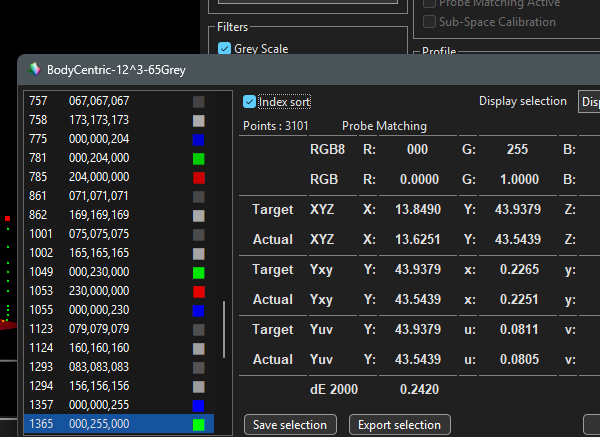
The Point Info window can be used to both see point info data, as well as interact with the data in different ways.
From specific point deletion, to editing measured values, to exporting selected sub-sets of point data, the Point Info dialogue window has multiple uses.
Point Info.
A Double Left Click on any point in a majority of the ColourSpace graphs opens a floating Point Info dialogue window enabling any point to be edited, deleted, or the selected patches exported as a .csv list or, with higher license levels save as a new profile.
Note: If Probe Matching is active, points cannot be edited.

The Display Selection drop-down enables the points list to show all profile points, the selected point, and points presently selected to be displayed via the Graph Options window, Filters options, including Custom Filters for higher ColourSpace license levels.
(The data within the Point Info dialogue is also constrained by the Patch Scale value setting, and Patch Scale should be set to match the values used when the profile was generated.)
The available options are:
- Selected - Points around the selected point are also listed
(The relative Zoom size of the graphs when a point is Double Left Clicked defines the number of additional points listed, with a high zoom listing just the single point) - Displayed - All points displayed with all graphs are listed, constrained by the available Filters, including Custom Filters.
(The use of Custom Filters can be exceptionally powerful when combined with Export Selected, as well as Save Selected.) - All - All profile points are listed regardless of any other constraints set.
The Index sort option will re-order the patch list based on the patch index number. Disabling it list the patches based on the patch colour values.
The Export selection option will export a .csv list of the selected points, and can be used to export specific patches, such as for use with Extended Probe Dynamic Range.
The Save selection option will save the selected points as a new Profile, enabling alternate profiles to be saved as a sub-set of the original profile.

With higher license levels the use of Save selection can be very useful, as it enabled different Profiles to be saved from one larger profile, using the Filter options, including Custom Filters, as can be seen in the above image where a large volumetric profile is being exported as a Grey & Primary Ramp profile using the Filters options.
Using Profile Filters, including Custom Filters, can enable precise point selection, such as the following to display just the Grey Scale plus one each RGB point and ~90%.

The new Save selection profile will be saved as a standard Profile type, and if the points selection should be a Quick Profile the profile can be exported and the <quick> tag changed as necessary via a text editor, such as Notepad.
(Remember Quick Profiles have to have specific patch measurements, such as a Grey & Primary Ramp having matching RGB and Grey patches.)
For information on using Custom Filters see the Custom Filters page.
Even the standard Profile Filters can be useful for saving a new profile via Save Selection, such as targeting a profile to its own Extracted colour space, and using the dE filters to remove any points with a high dE value as potentially those points could be bad probe readings. The new Saved profile would then not contain those points, and LUT Generation can be performed on both the original profile, and the filtered profile, to compare the accuracy of LUT result.


Using Point Delete within the Point Info window those points that have long Tangent Lines, and/or are outside the display's actual gamut, but are also a low dE value, can also be removed.
The new Save selection profile can potentially be preferable as any decent monitor should map to its own Extracted colour space well, meaning that points with a high dE value, or large tangent line variations, are potentially probe measurement errors.
Even if the display suffers understandable errors that show with a comparison of the profile to its own Extracted colour space, such as having a colour tint near black, removing such points from the measured profile can have a beneficial impact on the generated LUT.
Other things to try when comparing the original profile LUT Generation with alternative profiles saved from the same original profile include things like using the standard filters to remove the Grey Scale from the profile, or removing the Primary and/or Secondary measurement, or using the Custom Filter to remove all gamut edge points, as that is often where probe measurement errors can reside.
Or removing points below a set nits value, as again many probes will generate invalid measurements in low-lights.
And obviously any combination of any different filters...
And then compare the LUTs generated from the different profile sub-sets.


