LG OLED SDR Profiling using ColourSpace and DaVinci Resolve iTPGI wanted to post some further instructions for DaVinci Resolve users of ColourSpace, as additional info beyond the LG Guides for Profiling/Calibration, to understand how iTPG of Resolve works.
The iTPG of Resolve will receive 0-255 values from ColourSpace with Patchscale @ FULL.
You can see the RGB-Triplet of each patch to the Resolve Dialog window when Resolve iTPG has connected with ColourSpace:
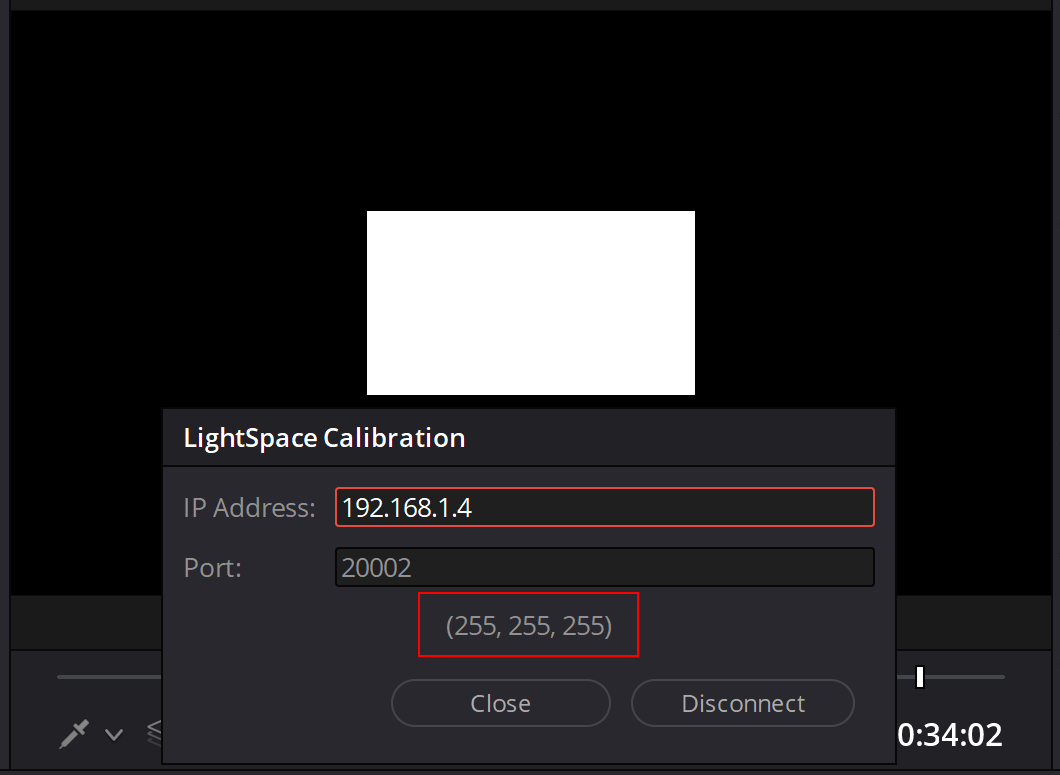
According to the Video Monitoring setting in Resolve, resolve iTPG will scale to LEGAL or retain FULL levels.
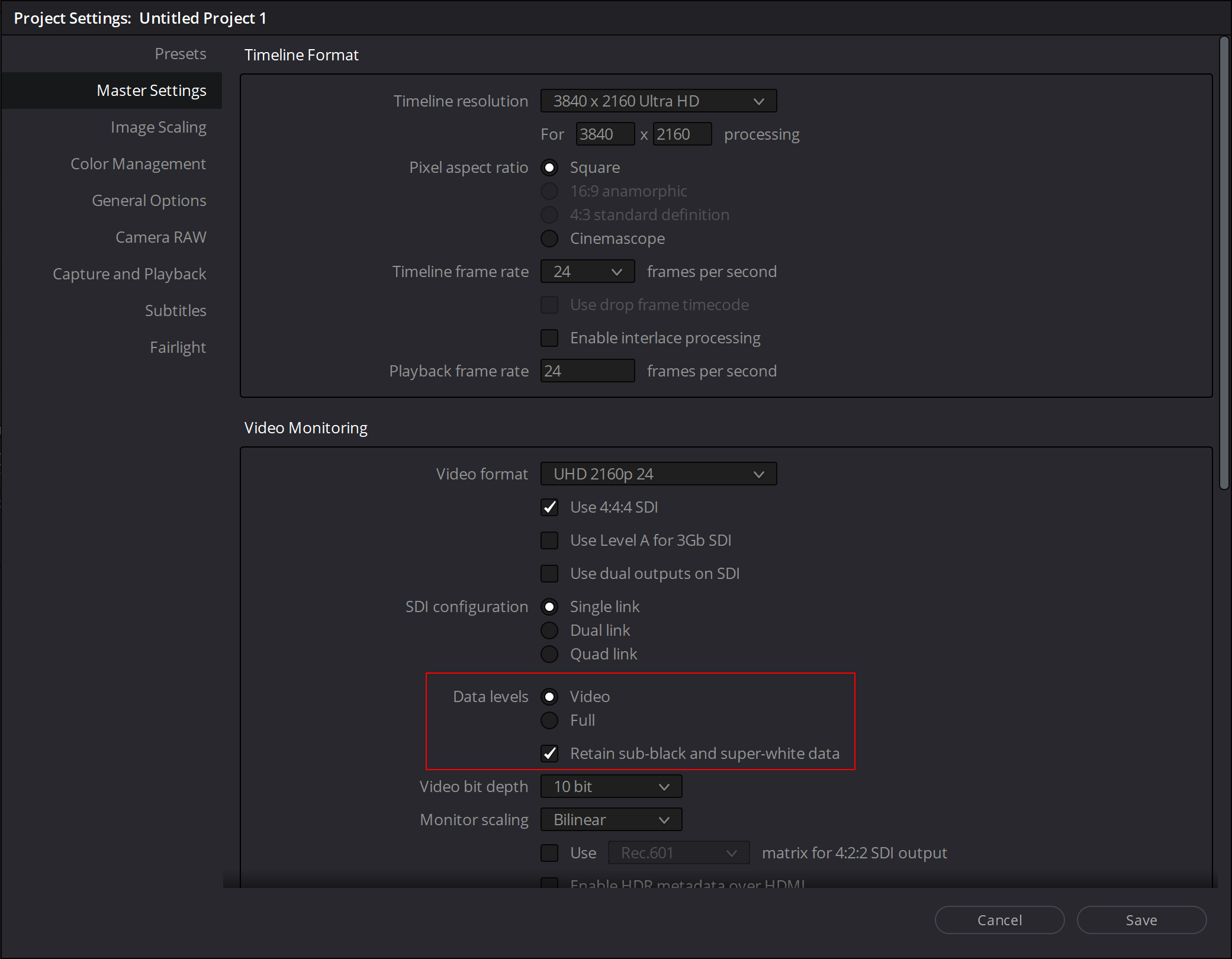
According to the Resolve Project Settings -> -> Master Settings -> Video Monitoring -> Data Levels setting:
When Video is selected, Resolve with scale the ColourSpace 0-255 value to 64-940 to the DeckLink output. LG OLED will receive 64-940.
When Full is selected, Resolve will not scale the ColourSpace 0-255 values; it will output 0-1023 values to the DeckLink. LG OLED will receive 0-1023.
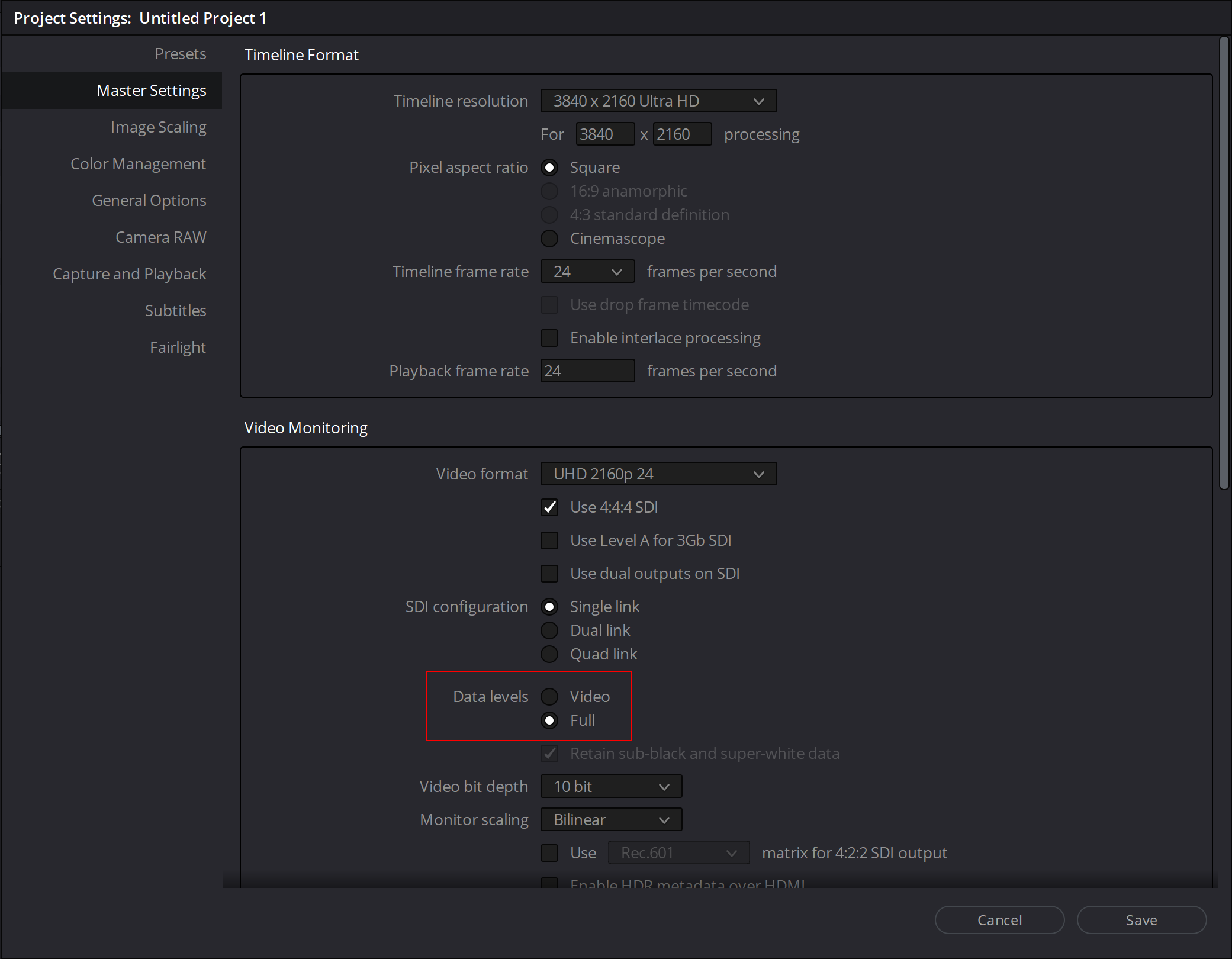
Since the LEVEL scaling performed to the output of DeckLink, controlled by Resolve, users have to use FULL patchscale in ColourSpace, use a FULL patchset, and then control the scaling from Resolve's Project Settings window.
Based on this information, when required a VIDEO LEVEL (LEGAL) profiling, it will need to configure ColourSpace to FULL patchscale, use FULL range patchset, and set Video Monitoring to VIDEO Levels @ Project Settings.
LG OLED LUT CapabilityLG OLEDs internally have 64-1023 3D LUTs (EXTENDED), with HDMI Black Level @ LOW.
When LG has Contrast at 85, the internal LUT will be 64-1023.
When LG has Contrast at 100, the internal LUT will be 64-940.
LG OLED LUT Profiling OptionsThey are three methods available to profile the LG OLED with Resolve.
Allow Headroom (WTW) and profile LEGAL:Use Contrast 85 (or below ...if required to fix Panel Factory Calibration), use FULL patchset, FULL patchscale, Video Levels @ Resolve Settings. Apply Videoscale Sub-Black before exporting 3D LUT DeviceControl File Format.
Before profiling, set Target Luma 100 nits (Patchscale FULL), pre-calibrate Reference White (255.255.255 RGB Triplet) in Manual Calibration windows) for 100 nits.
After the LUT Generation, apply a Videoscale Sub-Black Filter to map the 940 of your reference white to the 940 of the 64-1023 LUT.
(FULL patchlists are not provided inside the LG REV. 4B, they are available for download as ''SDR 3D LUT FULL Patchsets for Resolve and LEGAL profiling'' ZIP @ LG OLED Guides Page)
Clip Headroom (WTW) and profile LEGAL:Use Contrast 100, FULL patchset, FULL patchscale, Video Levels @ Resolve Settings, export 3D LUT DeviceControl File Format.
Before profiling, set Target Luma 100 nits (Patchscale FULL), pre-calibrate Reference White (255.255.255 RGB Triplet in Manual Calibration windows) for 100 nits.
(FULL patchlists are not provided inside the LG REV. 4B, they are available for download as ''SDR 3D LUT FULL Patchsets for Resolve and LEGAL profiling'' ZIP @ LG OLED Guides Page)
That method can be used from LG 2018 OLEDs, which are not suffering from factory panel calibration issues; some 2019 LG OLEDs (rarely) affected.
Systems with DeckLink with SDI output that uses SDI -> HDMI convertor can use that method.
Allow Headroom (WTW) and profile EXTENDED:
Use Contrast 85 (or below if required to fix Panel Factory calibration), use EXTENDED patchset, EXTENDED patchscale, FULL Levels @ Resolve Settings, export 3D LUT DeviceControl File Format.
Before profiling, set Target Luma 100 nits (Patchscale EXTENDED), pre-calibrate Reference White (255.255.255 RGB Triplet in Manual Calibration windows) for 123.4 nits.
The 3rd method explained to the LG Guides REV.4, its the recommended method, especially for LG 2020 OLEDs suffering from factory panel calibration issues.