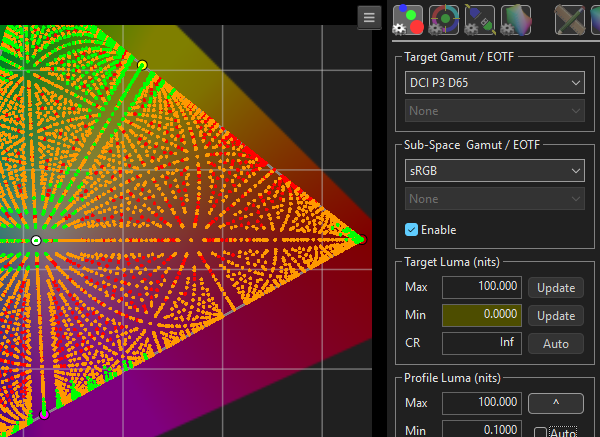
Sub-Space allows for the target colour space to be defined differently from the actual calibration colour space.
for example, to verify how accurate a given display will be able to manage sRGB when calibrated to DCI P3.
Sub-Space
Sub-Space allows the selection of any colour space - preset or user - to be used as a Sub-Space target for profile measurements.
When enabled, the Sub-Space colour space is treated as the Target colour space, enabling a display calibrated for a different colour space - say DCI P3 - to be profiled as if it were actually calibrated to the Sub-Space colour space - say Rec709 - to verify if the display can accurately cover the Sub-Space colour space.
The Enable tick box enables the use of Sub-Space when profiling, with the graphs plotting based on the Sub-Space colour space.

When a Sub-Space profile is Saved, it can be saved as a default Sub-Space profile, which will plot using the Sub-Space colour space, as defined above.
Alternatively, the additional Sub-Space option, within Graphs Options, can be used to set the Saved profile data as a Sub-Space Calibration profile.

With Sub-Space Calibration selected, the profile data is mapped to the original Target colour space, not the Sub-Space colour space. This is required if the Sub-Space profile is to be used for LUT Generation, where the calibration target is the main Target colour space, and the Sub-Space is being used to profile a reduced gamut within the Target colour space.
Effectively, Sub-Space Calibration performs an automated Reduced Gamut Profiling process.
Sub-Space Accuracy
The use of Sub-Space will not be as accurate as using a direct colour space target as with Reduced Gamut Profiling, due to the required colour space conversion for the patches generated.
For example, to calculate Rec709 white within DCI P3 you must create a conversion:
- 1,1,1 RGB Rec709 -> XYZ / then XYZ -> DCI P3 RGB
This calculates the RGB code values in DCI P3 that represents the white of Rec709. There is no guarantee that these will be absolute integer values in any bit depth, and will therefore be rounded to the closest integer values.
This is expected, as all TPG are, by necessity, integer based, and is therefore a fundamental function of cutting one colour space from another.
Obviously, when the target colour space white point is identical, any patch errors will be outside the grey scale.
When using a Sub-Space colour space that has the same white point as the main Target colour space, and variations will be small, and limited mainly to the gamut extremes.
When using Sub-Space for verification a display can fully cover the alternative colour space, the patch colour inaccuracy is obviously irrelevant.
For calibration, those situation where a Sub-Space approach is required, the patch colour inaccuracy will be a lesser issue than the alternative.
Sub-Space Reduced Gamut
Reducing the gamut area to be profiled while using Sub-Space can be of use for pre-calibrated displays that have a smaller gamut than the required Target colour space target, and have internal colour management that cannot be disabled. Such displays will suffer gamut edge compression, due to being pre-calibrated. JVC projectors are good example of such displays, as they are often colour managed to pre-set colour spaces, such as Rec2020, with no useable method to set the display to its native gamut.
Note: Due to the unique Colour Engine within ColourSpace Reduced Gamut Profiling can be used without Sub-Space, and in many situations may be the preferred profiling workflow.
The approach is to define the actual gamut area the display can actively use as a Sub-Space within the Target colour space.
This can be done by using Modify within the Manages Spaces library to extract the actual RGB xy values from a profile of the display.
- Profile the display with a Grey & Primary Only quick profile
- Select the profile from within the Manages Spaces library, and click Modify

- Enter a new profile name to differentiate the new colour space
- Press Extract Space, to save the new colour space
(The Extracted colour space will also include an extracted average EOTF/Gamma and White point values, which should be edited back to the values of the Target colour space) - Profile the display with the extracted colour space as the Sub-Space
- Save the profile with Sub-Space Calibration enabled
- Use the profile to generate a LUT as normal, targeting the standard Target colour space
(Sub-Space LUT Generation works only with Peak Chroma and Peak Luma, as Hybrid, Map Space, and Fit Space options require full range gamut profiles)
In some circumstances it may be helpful to slightly reduce the Extracted gamut further - say 5% or so, just to make sure the reduced gamut patch set is fully within the display's available gamut coverage. See Reduced Gamut Profiling, the Bad Pre-calibrated Displays section, for an example on how to define a reduced gamut colour space.
Note: When a profile is saved with Sub-Space Calibration enabled, the profile will not plot normally within the various graphs, due to the different targets in use.


