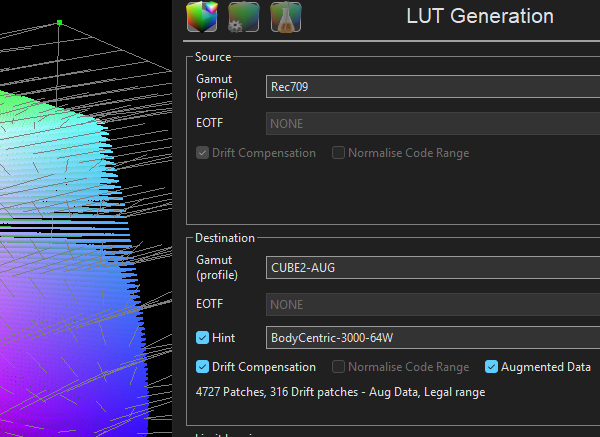
Hint, Drift, & Augment are options that can be used within LUT Generation to help maximise calibration accuracy, based on additional profile data.
Hint uses one profile to assist another in understanding it's required target, while Drift can help cancel displays variations during profiling, and Augment can use data from a different profile to enhance original profile accuracy.
Hint, Drift, & Augment
When generating LUTs there are a number of advanced options that can be used within the Destination profile selection.
The three options are Hint, Drift, and Augments Data.
Note: Only Drift is applicable for Source, and only when a measured profile is used as a Source.
Hint
Hint can be exceptionally useful
The concept behind Hint is to enable the use of a complex full volumetric profile as a guide or master for a smaller profile set. For example, a Grey Ramp, or Grey & Primary Ramp profile can have a display's in-built non-linear volumetric distortions mapped into the data set prior to LUT generation. This means that sparse profiles can generate more accurate LUTs, based on the more complex profile data being used as a Hint.
Ideally, the Hint profile would be generated from the display in question, but can also be used for displays within the same family that have exactly the same underlying non-linear response characteristics.

Hint Use
The Hint process is remarkably simple.
- Set-up the display for pre-calibration as usual, following the 3D LUT Calibration guide
- Perform a large volumetric display profile
(Use as large a patch set as possible, with Stabilisation Patches, etc., to generate the best possible assessment of the raw display)
This profile is now the master profile for the given display, or display family.
- At a later time, or on a new display from the same display family, perform a sparse patch profile
(A Grey Ramp, or Grey & Primary Ramp for example) - In Convert Colour Space select the Source target colour space as required
- For Destination select the sparse profile
- Within the Destination option tick Enable Hint, and select the full Volumetric profile for the given display/family
- The full Volumetric profile data will be used to enhance the sparse/Quick Profile data, better matching the display's native response
In this way, one master Volumetric profile can be used to enhance the accuracy of smaller/faster profiles when using them to generate 3D calibration LUTs.
Drift
Drift has two components.
The first is within Characterisation Profiling, where any user defined colour patch can be inserted every nn measurement frames, providing data that tracks drift of the display during profiling. The drift data can be plotted, and used to better understand how the display responds during profiling, usually due to heat.
As much as possible, Drift data should be used to help define the best Patch Set, Stabilisation, Pre-roll, and Drift patches themselves to be used to minimise actual drift during profiling. Relying on Drift data for LUT Generation should be a last resort.
Note: The Drift patch value required will vary with monitor/probe combination, but is usually around 90% of nominal 100% white.

Drift processing can also be applied to any graph to see the impact of drift on the profile data, using the Drift tick box within the Processing section of Graph Options. The Drift profile can also be re-saved with Drift enabled, burning the Drift data into the new re-saved profile. Profiles saved with Drift burnt-in can then be used for additional processes, such as Hint.
Along with Drift, Pre Roll and Stabilisation can be used to minimise the effects of display heating, and reduce drift. Stabilisation patch size can also be set to full screen (FW - Full Width), to assist in limiting burn-in on displays that suffer that, such as OLEDs


The second Drift component is within LUT Generation, and uses the Drift data to apply a compensation to the profile measurements during LUT building, although this should be considered only as a last resort, with Drift data really being used to help define the best Patch Set, Stabilisation, Pre-roll, and Drift patches themselves to be used to minimise actual drift during profiling.
Note: Make sure the profile has not been re-saved with Drift burnt-in.

Augment
Augment can improve specific areas of a LUT
The Augmented Data process enables, for example, the grey-scale information within a given volumetric profile to be replaced with data from a totally different profile, effectively enabling the grey scale calibration to be altered and potentially improved.
For example, a relatively small Cube based profile, such as 103can be used for a volumetric profile, and augmented with a large Grey Ramp Quick Profile to enhance the grey scale accuracy. The Augment process uses the LUT generated from the initial profile to pre-process the second Augmented profile, enabling the Augmented Data to correct any inaccuracies in the original profile's grey scale, as well as enabling the use of a higher level of grey scale measurement granularity for enhanced accuracy.
The generation of an initial LUT from the initial profile is a critical step in the Augment workflow. The second larger Grey Only Quick Profile MUST profile through this LUT, and MUST use the same profiling settings, such as Scale, etc.
Note: Although profiles of any type/size can be used as the Augment Data, a Grey Ramp Quick Profile, such as a large Grey Ramp RGB, is the most obvious to use. Additionally, using too many steps within the Grey Ramp profile can cause issues due to display/probe noise and instability.
Augment Use
The process for using the Augmented Data process is as follows, based on augmenting a smaller volumetric profile with a larger Grey Ramp profile.
- Perform an initial Cube based (volumetric) profile of desired size
(103 for example) - Generate a LUT
- Re-profile through the LUT using a large Grey Ramp profile, or any other profile as desired
(The LUT can be loaded directly into the display/LUT box/Graphics program, or Active LUT within ColourSpace can be used) - Open the Manager Spaces library, and select the initial Cube based profile
- Select Manage, and select Add Aug, which will open a drop-down list of all available profiles from within the library
- Choose the second large Grey Ramp profile, and the Select button will add the profile as Augment Data
- Enter a new profile name to differentiate the profile
- Use Save, to save the new Augmented profile
Note: For the best possible accuracy, the Augment Grey Ramp profile could be generated via a Focused Patch Set.

- Within LUT Tools, LUT generation, select the new profile, and tick the Augment Data option
- A new LUT can then be generated, using the Augmented grey scale data

As always with all ColourSpace, there are no fixed structure processes. Another use of Augment could be to modify an older LUT with new Grey Scale data, rather than performing a totally new volumetric profile.
Augment Issues?
The Augment Data process generates a totally new LUT using a combination of the original profile plus the Augmented data profile - the original LUT is not directly used in the generation of the final calibration LUT - it is just used to profile through to generate the Augment data.
It is therefore technically impossible for the Augment data to make the result worse. Unless...
If the result appears worse, that means there has been display (or probe) drift/change between the two profiles, or the ColourSpace settings changed between the two profiles.
Or, the application of the initial LUT was faulty - see the Calibration Issues Page of the website to see what type of errors are likely, predominantly due to signal path issues, such as the LUT not being scaled for the correct signal range.
The best test for such signal path errors is to compare the results of the Augment Data profiling using the both the Active LUT within ColourSpace to profile the original LUT, and the original LUT uploaded into the final LUT location. If the two Augment Data profiles are different there is a signal path issue.
However, if the display or probe are unstable, the two profiles will be incompatible, and will potentially generate inaccurate results. Therefore, if a display or probe are unstable, the use of Augmented Data is not recommended.


