BM-TPG is an app developed by aulwa.com that generates calibration test patches for professional display measurement and profiling via BlackMagic's UltraStudio device.
- ColourSpace INF/XPT/PRO/CAL/LTE & HTX/HTP/HTL & DPS/ZRO
- Closed Loop Profiling
- TPG Operation
- 8-bit & 10-bit operation
- YCbCr Matrix for BT.709 and BT.2020
- Format dependent on UltraStudio model
$24 USD
Overview
BM-TPG is designed to run on the same computer as the UltraStudio device is connect to and connecting to the ColourSpace Network Server hardware mode, allowing easy connection between ColourSpace and the computer connected to the UltraStudio device.
Specifications
BM-TPG is designed to run on the same computer as the UltraStudio device is connect to and connecting to the ColourSpace Network Server hardware mode, allowing easy connection between ColourSpace and the computer connected to the UltraStudio device.
Test patches are generated at either 8-bit or 10-bit precision, as YCbCr 4:2:2, output as a SDI signal via the BlackMagic Design UltraStudio device.
The YCbCr colour conversion matrix defines BT.709 for standard HD BT.709 workflows, or BT.2020 for wide-gamut BT.2020 or DCI-P3 workflows.
The defined video format, including resolution and frame rate, is defined by the UltraStudio device and the formats it supports.
Video range can be set to Legal or Full, as required.
ColourSpace Integration
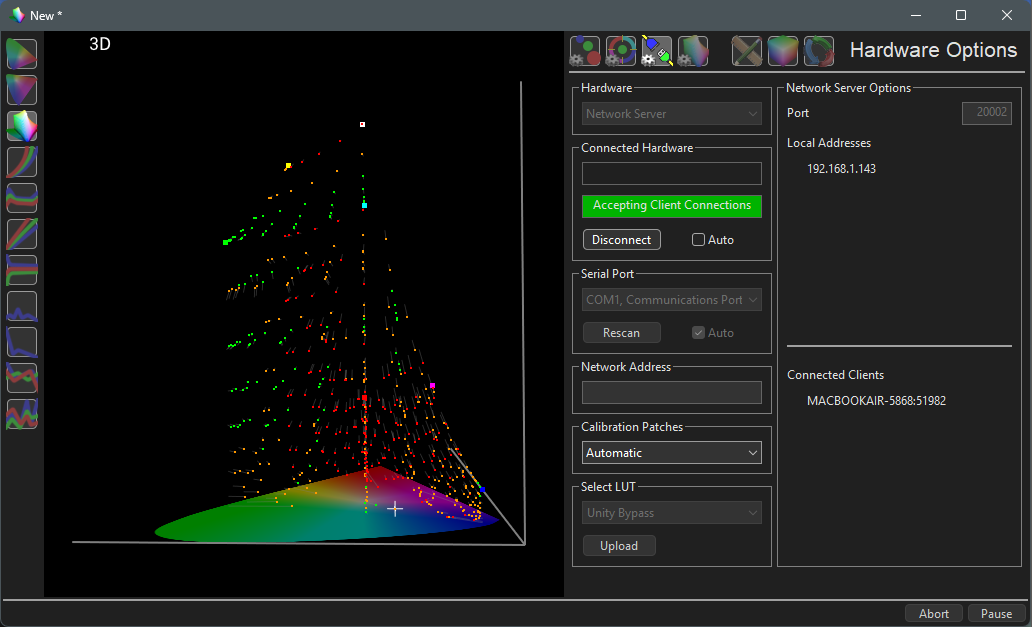
BM-TPG operation and function is controlled via the Network Server within the Hardware Options menu, accessed via the Profiling window.
For a User Guide on the workflow used for display calibration see the 3D LUT Calibration guide, combined with the specific PatternSpace information contained within this page.
Initial Setup
Make sure both the ColourSpace PC and the Mac the UltraStudio and BM-TPG reside on are are connected on the same network.
- Set the desired set-up options via the Settings menu, as required
- Open a ColourSpace Profiling window, select Hardware Options, and select Network Server from the Hardware drop-down list
- Select Connect, and the IP address and Port details of ColourSpace will populate info boxes within Network Server Options
- Open the BM-TPG app, either click Auto-discover, which finds ColourSpace on the network, or manually enter the IP address and port shown in ColourSpace's Hardware page
- Using Calibration Patches select the desired patch option to use for profiling
(If possible, Auto uses the patch settings defined within the ColourSpace Settings window, or else the closest available patch settings)
Note: The keyboard 'O' key can be used within the Manual Measure and Hardware menus to quickly Disable/Enable the TPG
As soon as a Calibration Patches selection is made, the output of the BlackMagic UltraStufio will display the patch colour as defined within the ColourSpace Measure and Characterisation menus via BM-TPG, as well as using the Bit Depth Resolution as set within Settings.
Profiling Operation
To use BM-TPG as a Patch Generator with ColourSpace navigate to the desired profiling mode - Manual Measure or Display Characterisation.
The output of the BlackMagic UltraStudio will mimic the colour displayed, using the patch settings defined via the Hardware Options and Settings menus.
Profiling can then be performed as normal, using the probe connected to ColourSpace, with BM-TPG controlling the BlackMagic UltraStudio device to present the required patches on the display being profiled.
LUT Use
After profiling, a Calibration LUT can be generated as normal within ColourSpace LUT Tools, and used where required, either within a grading system, a LUT box, or uploaded directly into a suitable display.