ColourSpace can concatenate different LUTs, using a workflow that applies multiple LUT in discreet steps to maximise final calibration.
Map Space and Fit Space provided tools that perform LUT Generation via a form of concatenation, but understanding how LUT Concatenation can be performed manually helps develop deeper user understanding of the advanced capabilities of ColourSpace.
It is also possible to Swap LUT Components, rather than Concatenate them.
LUT Concatenation
As ColourSpace does not use fixed calibration workflows, but instead provides tools for users to apply as required, there are a number of ways any end result can be achieved. And calibrating a display to a colour space that is a wider gamut than the display can actually achieve is a good example.
Obviously, Map Space and Fit Space provided tools that perform LUT Generation via a form of concatenation, but understanding how LUT Concatenation can be performed manually helps develop deeper user understanding of the advanced capabilities of ColourSpace, compared to the more limited options of alternative calibration systems.
The basic principle for LUT Concatenation for display calibration is to split the calibration into two separate parts - one making the display as accurate as possible to its own gamut/gamma capabilities, and the second to perform a technical conversion to map the now calibrated display into the target colour space.
In practice, this workflow is applied in reverse.
-
Source Footage
Source Footage
Source Footage
Rec709
-
Colour Space Conversion
Rec709 to Display colour space technical conversion LUT
-
Calibration
Display self-calibration LUT
-
Calibrated Display
Rec709 Calibrated Display
In the above example the first LUT in the image path is just converting the Rec709 colour space into the display's native (actual) colour space through the use of a User colour space. The second LUT is accurately calibrating the display to itself.
The process for LUT Concatenation based display calibration is as follows.
- Set the display to its native colour space, and set Black and White points as required
(Follow the standard pre-calibration procedure as outlined within the 3D LUT Guide) - Profile the display as normal, with a large patch set
- From within the manage Spaces library select the colour space, and use Modify to extract the display's native colour space

- Generate the first Colour Space Conversion LUT using the extracted colour space as Destination, and Rec709 as Source
- Generate the second Calibration LUT using the profile as Destination, and the extracted colour space as Source
- Concatenate both LUTs into a single, final calibration LUT
(Make sure to get the concatenation order correct...)
How to Concatenate LUTs?
The obvious way to concatenate LUTs, is to use the Add function within LUT Tools to add together multiple LUTs.
- Save both LUTs into the Manage Spaces library
- Define the concatenation order, and open the first LUT
- From within LUT Tools select LUT Adjustment, Maths, and the Add function
- Select the second LUT from the drop-down list, and Apply
- The two LUTs will be concatenated
Direct LUT Concatenation
An alternative method to Concatenate LUTs is to generate the second LUT on-top of the first, using the Apply To Existing LUT capability.

- Generate the first LUT as usual, but using the Extracted colour space as the Source
- With the LUT still held in LUT Generation, configure LUT Generation for the second LUT
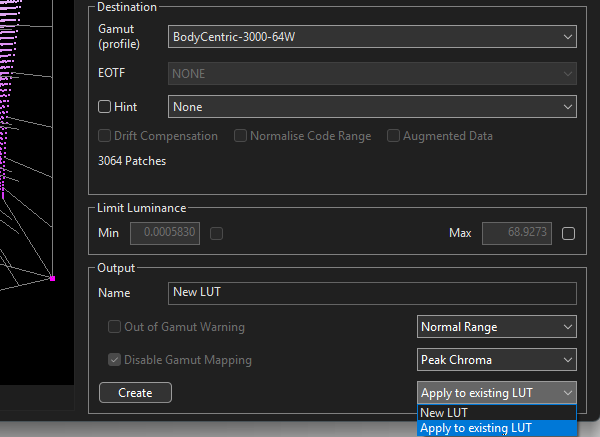
- Set the New LUT drop-down to the Apply to existing LUT option
- Set Source to the desired colour space standard, and Destination to the Extracted colour space
- When the second LUT is generated it will be concatenated with the first LUT, generating a LUT that calibrates the display to the desired colour space standard
When calibration of a particular display is proving awkward, using LUT Concatenation can prove a beneficial approach.
Additionally, the ability to Swap LUT Components can be equally as effective, and in some case more so. For example, swapping a Grey Scale calibration in a volumetric profile with one generated via a Matrix Calibration can help when the display is unstable, causing issues with the calibrated grey scale, but for the gamut coverage a true volumetric calibration is required.