PatternSpace is a macOS App developed by caplaz.com that generates calibration test patches for professional display measurement and profiling.
PatternSpace integrates directly with ColourSpace as a software Test Pattern Generator, replacing or complementing hardware TPGs for display calibration workflows on Mac.
- ColourSpace INF/XPT/PRO/CAL/LTE & HTX/HTP/HTL & DPS/ZRO
- Closed Loop Profiling
- TPG Operation
- Up to 16-bit operation
- SDR and HDR / EDR support
- Mac built-in displays & connected monitors
$39.99 USD
Overview
PatternSpace is engineered from first principles for display calibration accuracy. The rendering pipeline is built on Apple Metal and the macOS EDR (Extended Dynamic Range) framework, delivering full HDR headroom with zero drift between patches. Every test patch is generated directly on the GPU - there is no screenshot path, no colour management interference, and no gamma compression applied by the OS.
With ColourSpace, PatternSpace works as a software test pattern generator that plugs into the existing closed-loop profiling workflow.
Specifications
PatternSpace generates a comprehensive range of test patterns for display calibration and measurement:
- Solid fills at any colour and luminance level
- Colour bars and step wedges
- Wipes and gradients
- Geometry patterns, checkerboards, and alignment grids
- Gamma checker and clipping indicator patterns
- Window patterns with configurable size and position
Test patches are generated at up to 16-bit precision and delivered directly to the target display without OSce. PatternSpace detects and drives any display connected to the Mac, including external monitors and reference displays connected via adapters.
ColourSpace Integration
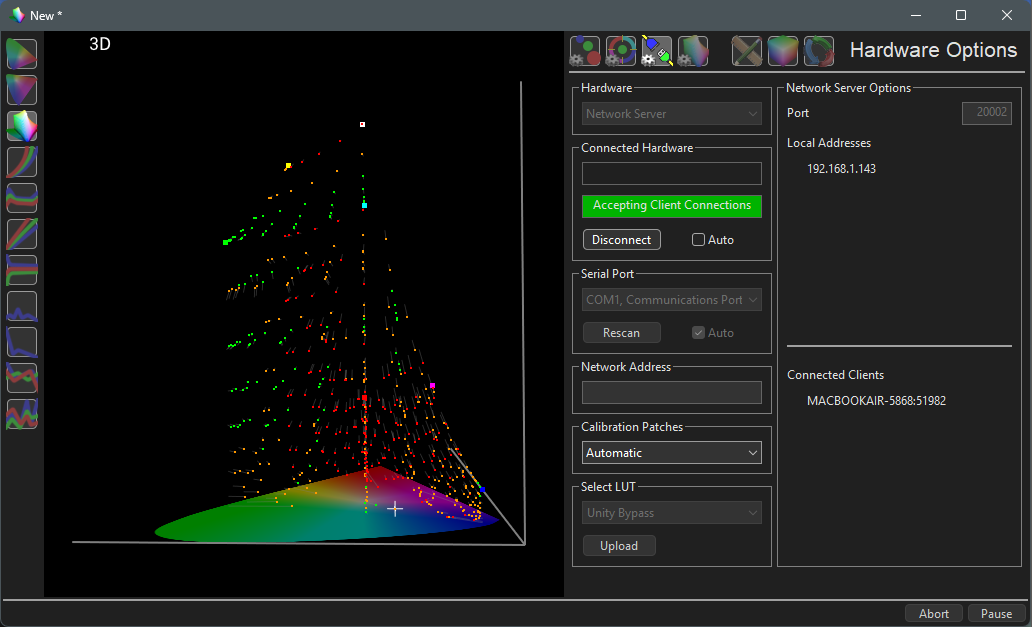
PatternSpace operation and function is controlled via the Network Server within the Hardware Options menu, accessed via the Profiling window.
For a User Guide on the workflow used for display calibration see the 3D LUT Calibration guide, combined with the specific PatternSpace information contained within this page.
Initial Setup
Make sure both the ColourSpace PC and the PatternSpace Mac are connected on the same network.
- Set the desired set-up options via the Settings menu, as required
- Open a ColourSpace Profiling window, select Hardware Options, and select Network Server from the Hardware drop-down list
- Select Connect, and the IP address and Port details of ColourSpace will populate info boxes within Network Server Options
- Open the PatternSpace app, select ColourSpace Generator modes and click Connect to auto-discover the required IP address and Port as shown within ColourSpace via UDP
(Manual connect mode can be used if there are issues with Automatic mode) - Using Calibration Patches select the desired patch option to use for profiling
(If possible, Auto uses the patch settings defined within the ColourSpace Settings window, or else the closest available patch settings)
Note: The keyboard 'O' key can be used within the Manual Measure and Hardware menus to quickly Disable/Enable the TPG
As soon as a Calibration Patches selection is made, the output of PatternSpace will display the patch colour as defined within the ColourSpace Measure and Characterisation menus, as well as using the Bit Depth Resolution as set within Settings.
Profiling Operation
To use PatternSpace as a Patch Generator with ColourSpace navigate to the desired profiling mode - Manual Measure or Display Characterisation.
The output of Patterns will mimic the colour displayed, using the patch settings defined via the Hardware Options and Settings menus.
Profiling can then be performed as normal, using the probe connected to ColourSpace, with PatternSpace displaying the required patches on the display being profiled.
LUT Use
After profiling, a Calibration LUT can be generated as normal within ColourSpace LUT Tools, and used where required, either within a grading system, a LUT box, or uploaded directly into a suitable display.