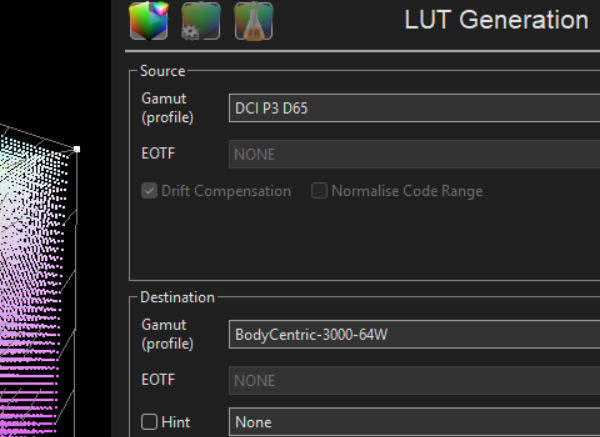
LUT Generation within ColourSpace has a range of o of user options that control the mathematical processes & algorithms used within the ColourSpace Colour Engine.
Understanding the options within LUT Generation will greatly enhance final calibration accuracy, as well as enable a multitude of additional possibilities.
LUT Generation
The LUT Generation menu is used for building calibration LUTs from display profiles, as well as Technical Conversion and Look LUTs.
When generating LUTs, there are a range of user options that control the mathematical processes & algorithms used within the ColourSpace Colour Engine, including the ability for higher ColourSpace licenses to natively generate 3D LUTs with cube resolutions of 10243 and beyond, rather than the default 333 cube size.

The main LUT generation selections are via the Source and Destination drop-downs, where the required colour spaces, cameras spaces, film profiles, and display profiles are selected from the main Library for LUT Generation.
With higher ColourSpace license levels it is also possible to Double Right Click the Source and/or Destination selection drop-downs when displaying Colour Space or Camera data, to open a Modify window, as available within the main Library options. The Modify window will allow transient changes to be made to the selected colour or camera space, with all changes live updated to the selected colour or camera space, enabling alternate LUTs to be quickly generated. A * by the colour or camera space name signifies the active colour/camera space has been modified from the library original.
As the Modify window is non-modal, it can be kept open and different LUTs generated with different Colour/Camera settings.
As soon as the Modify window is closed, the colour/camera space will default back to its original selection/settings.

Any changes made to the selected colour or camera space will not be saved into the Library unless the Save button is used.
Source
The concept of the Source colour space is the colour space any given images are expected to be viewed in. So, for example, normal video will usually be expected to be viewed in Rec709 or P3 D65 colour space, making these the Source colour spaces to select.
The Drift Compensation tick box become available only when the selected profile has been generated with Drift patches. When active, the LUT Generation uses the Drift data to compensated for drift during the display profiling.
Note: The use of Drift during LUT Generation should always be considered a last resort.
The Normalise Code Range tick box becomes available when the selected profile has been generated using Extended Range patch sets (16-255). When active, the profile patch data is normalised, meaning Extended Range profiles are processed as not having over-range data.
Destination
The Destination colour space is the colour space the given images will be seen in - an alternative colour space to the image's original Source colour space. This will often be a display's Profile when generating a calibration LUT, or an alternative colour space if generating a colour space conversion LUT.
The Drift Compensation tick box become available only when the selected profile has been generated with Drift patches. When active, the LUT Generation uses the Drift data to compensated for drift during the display profiling.
Note: The use of Drift during LUT Generation should always be considered a last resort.
The Normalise Code Range tick box becomes available when the selected profile has been generated using Extended range patch sets (16-255). When active, the profile patch data is normalised, meaning Extended range profiles are processed as not having over-range data.
Note: Using an Extended range profile, with Normalise Code Range, and the Extended Range drop-down option makes no logical sense, but as always with ColourSpace all options are provided... See Extended Range below.
The Augmented Data tick box become available when the selected profile has been augmented with additional profile data, such as a Grey Scale profile. When active, the LUT Generation uses the Augmented data to increase calibration accuracy.
The Hint tick box enables a second profile to be selected from the associated drop-down list, and used as a guide for LUT Generation.
For an end user, a large Hint profile, previously generated from the same display, can be used to supplement a smaller new profile when compensating for display drift/ageing.
For manufacturers, a large Hint profile can be generated from a single display within a given batch, or model range, and used to enhance calibration of each additional display in the batch/model range, individually profiled with a smaller patch set.
Limit Luminance
Limit Luminance enables the Min/Max luma for the LUT to be defined, either in nits or as a value in the range 0-1, depending on the LUT Generation settings. It also uses Peak Luma for LUT Generation, regardless of the option selected.
(If used with display calibration, the Min value should not be smaller than the Min in the profile, and the Max not set higher, and if the peak white of the display has an incorrect colour temperature will introduce channel clipping if the Limit Luminance Max value is not set low enough.)
Limit Luminance should only be used on non-PQ HDR displays when there is no way to set the desired target peak luma via Brightness/Contrast display controls.
On PQ based HDR displays Max should be used to set the clip point to a specific nits value, that matches the select target ST2084 colour space, and that is below the actual measured peak value, and prevents channel clipping.
For technical conversion LUTs, the use of Limit Luminance may be required, for example when converting from HDR to SDR.
If a standard power law, BT1886, or HLG pre-set Colour Space matrix is used as the Destination, the Limit Luminance values will show as a normalised percentage value, with values from 0 to 1.0, although values over 1.0 can be entered.
Output
The Output options define the processing and algorithms to be used during LUT Generation, as well as setting the LUT to be generated as an Out of Gamut Warning LUT.
Name
The Name option enables a LUT name to be defined before the LUT is generated.
Note: The Rename option within Mange LUT can be used to chnage the LUT name before saving to the Working LUT library.
Normal Range, Extended Range, Custom Ranges
The Range options define the active signal range the generated LUT will function over, depending on the profile being used, and in conjunction with the Normalise Code Range option within Destination for Extended Range profiles.
Normal Range
Normal Range is the default for most LUT generation, especially with Full or Legal Range profiles, generating a 0-1 range LUT from the 0-255/16-235 8-bit profile data. When used with an Extended Range profile, it will generate a 0-1 range LUT based on the Legal Range of the profile - 16-235 8-bit. When used with an Extended Range profile in conjunction with Normalise Code Range, it will generate a 0-1 range LUT based on the Full Range of the profile - 16-255 8-bit.
Extended Range
Extended Range is the default for LUT Generation with Extended Range profiles, generating a 0-1 range LUT from the 16-255 8-bit profile data. When used with a Full or Legal Range profile (or an Extended Range profile with Normalise Code Range active), it will map the 0-1 range of the profile into the compressed Legal range of an Extended Range LUT, extrapolating the Extended component of the LUT.
Custom Ranges
Custom Ranges provided a totally flexible approach to the definition of LUT ranges, using a user defined .csv file, enabling any custom ranges to be defined.
A file called colourSpaceCustomRanges.csv needs to be located in the same directory as the ColourSpace .ini files - nominally C:\Users\xxxx\AppData\Roaming\ColourSpace.
The file data format is:
- Label, 0.0, 1.0
or
- Label, 0.0, 1.0, 0.0, 1.0
The values are min and max, or min src, max src & min dst, max dst depending the format used.
The values should be 0 or greater (unless you really know what you are doing, in which case negative values can be used...), and min must be smaller than max.
As an example, for a Video Scale process you could use:
- Video Scale, -0.0731, 1.09
or
- Video Scale, -0.0731, 1.09, -0.0731, 1.09
The entries held in the colourSpaceCustomRanges.csv file will appear in the Normal/Extended Range drop-down.
Peak Luma, Peak Chroma, Fit Space, Map Space, & Hybrid
All five of the different processes will produce near identical results on displays that have a native gamut that is larger than the target colour space, have a white point that is accurate to the target colour space, and reasonable EOTF.
On displays that have a native gamut that is larger than the target colour space, but have a white point that is inaccurate to the target colour space, Peak Luma will produce a result that is different to the other three processes, as the peak luma value will be maintained, with channel clipping occurring.
On displays that have a native gamut that is smaller than the target colour space, all four processes will produce results that are different to each other, as they will all use different colour engine algorithms to best manage the display's low gamut.
Hybrid, Map Space, and Fit Space can only be used with profile data sets that include Black, 100% White, plus 100% saturation Red, Green, and Blue patches, and Fit Space and Map Space will not work with small profiles, while Fit Space cannot use Hint, Augment or Drift data.
For any given display, Peak Chroma, or potentially Hybrid, is usually the correct LUT Generation process to use, as it will always generate the best possible volumetric accuracy.
However, for displays that show artefacts with the use of Peak Chroma or Hybrid, the use of Fit Space or Map Space may be preferable, as although volumetric colour accuracy may be less, LUT Generation artefacts associated with poor underlying displays will also be less.
Note: When working just with colour/camera spaces, not Profiles, changing the selection of Peak Chroma, Fit Space, etc., will have no effect.
Peak Chroma
Peak Chroma is the normal default within ColourSpace, and for displays with complex RGB channel interaction (high colour cross-coupling), and with a gamut that is greater than the target colour space, will be the correct choice for calibration. Peak Chroma will manage any Grey Scale/White Point variation from the measured profile compared to the target colour space by reducing the maximum brightness of the display to bring the highest colour channel into range, preventing colour clipping in the highlights. However, the results of Fit Space &/or Map Space may be superior on some displays, especially those with a lower gamut than the target colour space - specifically Map Space, as that uses a very powerful set of mathematical algorithms to define the resulting LUT.
Peak Luma
Peak Luma maintains the maximum brightness of the display, irrespective of the colour channels, so ignoring any Grey Scale/White Point variation from the measured profile compared to the target colour space. This means if there is any variation in the Grey Scale/White Point colour clipping will occur in one or more colour channels.
For calibration, Peak Luma should therefore only be used on displays that have a perfectly accurate native white point.
Note: Peak Luma should also be the default selection for the generation of Technical conversion LUTs, such as when using the scaled DCI XYZ colour space.
Fit Space
Fit Space is fundamentally the same as Peak Chroma, but uses totally different Colour Engine algorithms in generating the final LUT, and offers a potentially good calibration alternative for displays that have good RGB channel separation (low colour cross-coupling), and for displays that prove difficult to calibrate via Peak Chroma, although Fit Space can be used on any display as an alternative to Peak Chroma or Peak Luma.
The underlying process within Fit Space is to filter or fit the profile data set into a more simplified form based on the underlying capabilities of the display, so removing unexpected excursions and erroneous data that can cause unwanted artefacts in the final LUT, which in-turn causes visible artefacts in the final viewed image.
This simplification process can make Fit Space the better choice for displays profiled with low-end probes with bad probe readings in the profile, as it will reduce or eliminate associated artefacts, although true colour volumetric accuracy will likely be less especially if volumetric non-linear colour adjustments are required. It also means Fit Space will not work well if the display has poor RGB channel separation (bad colour cross-coupling, as shown with the RGB Separation graph).
Note: Fit Space will not work with small profiles, and cannot use Hint, Augment, or Drift data.
Map Space
Map Space is far more advanced than any of the other options, and uses a complex set of Colour Engine algorithms in generating the final LUT that are applied in a totally unique multi-step approach to LUT generation and calibration. This process will more often than not produce a cleaner picture quality on any display, with a high level of calibration accuracy, even on displays with poor RGB channel separation (bad cross-coupling), but especially on displays with a smaller gamut than the target colour space.
The approach taken with Map Space is to assess the raw underlying capabilities of the display, without any reference to the target colour space, to see what the display is natively capable of, and then map those capabilities into the target colour space, using a multi-step mathematical process. This mapping process will work on any display, with any underlying issues that may cause calibration artefacts/problems with the other LUT generation options.
Note: Map Space will not work with small cube based profiles.
Hybrid
Hybrid mode is based on Peak Chroma, but does two things that can potentially help with the accuracy of the LUT's grey scale, and low-light performance, by isolating those areas of the profile, and processing them independently from the rest of the profile's volumetric data.
This maximises the accuracy of the grey scale, and helps remove low-light errors introduced by inaccurate probe readings.
New LUT & Apply to existing LUT
When generating a LUT there are two option, with New LUT being the only choice when generating an initial LUT.
Apply to existing LUT becomes available when an initial LUT has been generated or loaded from the library, or the New option has been used from within LUT Management. The Apply to existing LUT then enables a new LUT Generation to be applied to any existing LUT, concatenating the new LUT with the existing LUT.
Concatenating LUTs can be a very powerful tool, for example changing an existing LUT to target a different colour space, of for use with displays that have major underlying issues and require a LUT Concatenation approach for best calibration.
Gamut Mapping & Out of Gamut Warning
In addition to the main LUT Generation options, Gamut Mapping & Out of Gamut Warning also have an effect on the generated LUT. The Gamut Mapping options can be particularly useful options to understand.
Gamut Mapping
The Gamut Mapping options either disable gamut edge processing completely when generating a LUT for displays with a native gamut smaller than the target colour space, or use the selected Gamut Mapping processing.
When a display has a native gamut smaller than the target colour space multiple input colours at the gamut boundary will be mapped to the remaining non-clipped colour(s) on output, minus the clipped colour. Gamut Mapping applies a change to each colour value that would otherwise be clipped on output, via changes in hue, saturation or luminance, in an attempt to maintain the correct relative colour. The selected Gamut Mapping option defines the type of Gamut Mapping to be applied.
With display calibration it may be visually preferable in some instances to simply clip out of gamut colours at the gamut edge, via Gamut Mapping Disabled or Gamut Mapping Clip, rather than have the gamut edge altered via Gamut Mapping Full.
Out of Gamut Warning
Out of Gamut Warning configures the generated LUT to highlight colours that are outside of the display's available gamut.

In-gamut colours are shown black & white, with out-of-gamut colours shown inverted, and fully saturated.
Create
Create will generate a LUT based on the above settings.
The time taken for LUT generation depends on a number of factors, including the defined LUT size; the Target gamut being larger than the display's native gamut; the use of Gamut Mapping; and the validity of the profile measurement. If the profile has invalid data, as shown by the various Profile Graphs, LUT Generation can take a very long time, and will obviously result invalid corrections, due to the invalid profile data - Garbage in = Garbage out.
Higher ColourSpace license levels have multi-threading capability, enabling the Create button to be used multiple times with different Source/Destination configurations, or multiple LUT Generation windows to be active, as well as enabling other ColourSpace functions to be accessed while LUTs are being generated. Higher license levels also have the ability to natively generate 3D LUTs with cube resolutions of 10243 and beyond, rather than the default 333 LUT size.
Gamut Coverage
After LUT Generation completes a Gamut Coverage pop-up window will provided a volumetric percentage for the display gamut coverage compared to the target colour space, based on the code value range.
The more volumetric points in the original profile, the more accurate the volumetric Gamut Coverage value will be.
Note: Peak Chroma will generate the most accurate Gamut Coverage value. Due to the way Map Space and Fit Space work, they will generate overly optimistic Gamut Coverage values.


